Sharing projects & files
The last and most precise layer: who can reach one specific project or file.
It works identically for both, so learn it once and you're done.
The three levels
| Level | Can do |
|---|---|
| Viewer | Open it and read it. |
| Editor | Read it and change it. |
| Owner | Everything an editor can, plus decide who else gets access. |
Pick the lowest level that lets somebody do their job. Most people only ever need Viewer or Editor, and you can always move them up later.
Who you can share with
- A person — one specific member of the initiative.
- A role — everyone holding that initiative role, in one go. Share with "Cast" and every cast member gets it, including the people you add to that role next month.
Sharing with a role is the tidy option when a whole group should have the same access. Set it once instead of adding eleven people individually and forgetting the twelfth.
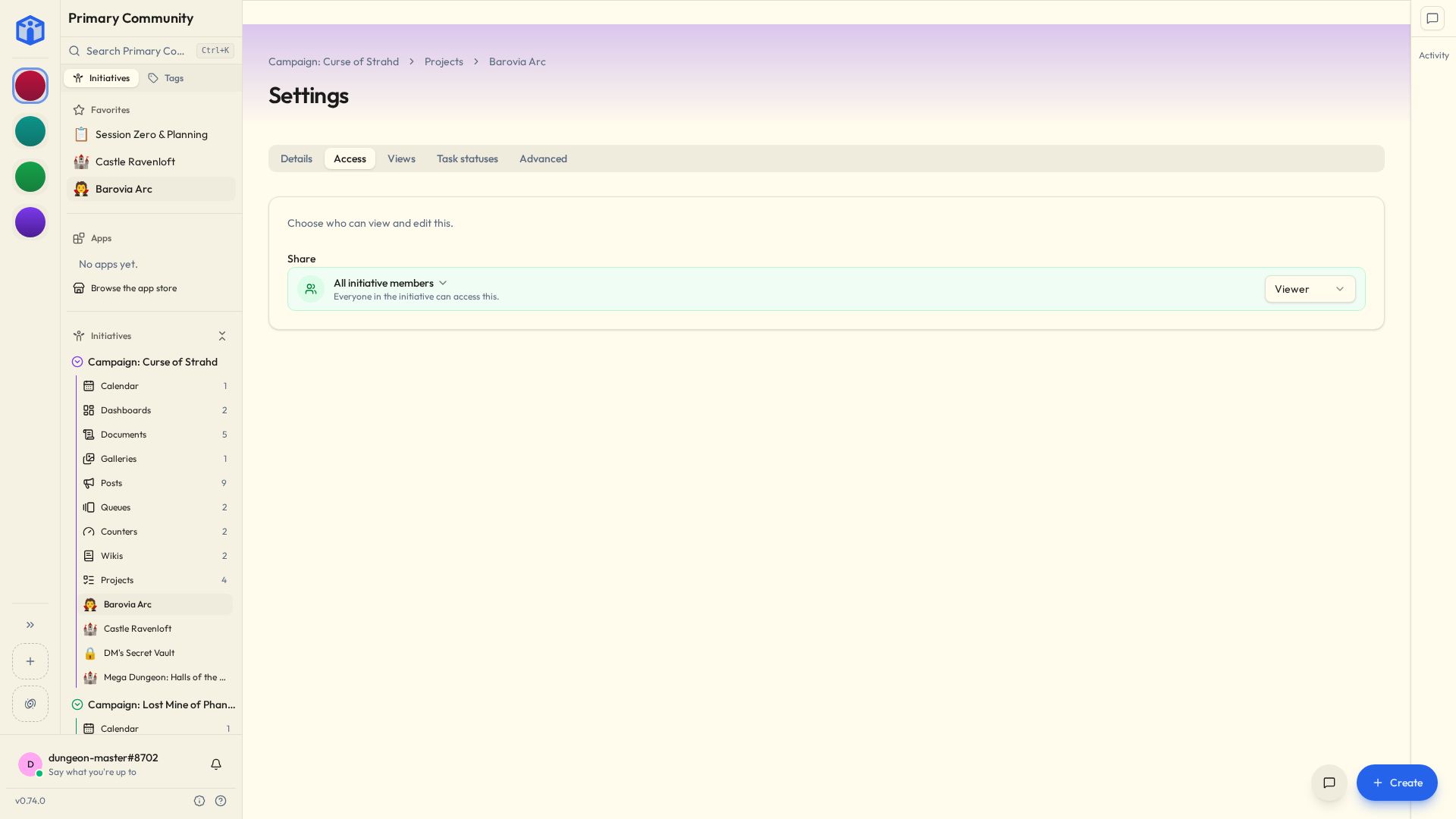
Open, or restricted
- All initiative members — everyone in the initiative can reach it. Good for things the whole team should see.
- Restricted — only the people and roles you name. Good for anything you'd rather not explain later.
When in doubt, start restricted. Widening access takes two clicks; un-sharing something people have already read takes a conversation.
Changing access later
Open the Access tab in a project's or file's settings whenever you like — add people, change a level, remove somebody. Changes apply immediately.
Every settings tab has its own web address too, so you can send somebody a link straight to a tool's sharing options instead of describing which three things to click.
You can also change access on several things at once. In a list of files, projects, queues, counters, dashboards, galleries or wikis, open More actions, choose Select items, pick what you want, then Edit access. Handy when a new teammate joins a batch of work, and handier when somebody leaves. Archived things keep their sharing as it is, so a selection with one in it says so.
You don't have to click each card individually, either. Click the first, hold Shift, click the last, and everything between comes with it. Shift-clicking away from a card you just unticked clears that run the same way. (Shift+Enter or Shift+Space does it from the keyboard.)
Three things worth remembering
- Initiative membership comes first. You can only share with somebody already in the initiative. If they're not, add them there first — the box won't offer them otherwise.
- Moderators see everything. A member with the Moderator role opens the item regardless of anything on this page. That's intended, and worth remembering for genuinely private material.
- Community admins see everything in their community. Also by design. Somebody has to be able to administer the place.
For the technically minded — how item sharing is stored and checked
Per-item sharing is recorded as grants naming a project or file, a person or a role, and a level (view / edit / own). On every request the database evaluates whether the current user satisfies the grant — directly, through a role they hold, through the initiative's Moderator role, or as a community admin — before any data comes back. Because that check lives in the database alongside the community and initiative boundaries, the link to a project is never the thing that grants access to it. See How your data is kept separate.
Related
- Initiative roles — sharing with whole roles at once.
- Sharing & access overview — how this fits with the other layers.