Platform roles
Two role systems, kept deliberately separate:
- Community roles (superadmin / admin / member) govern a single workspace. See Working with communities.
- Platform roles govern the whole server — every community, every user. That's this page. The ladder runs member → support → moderator → operator → owner. Admin belongs to the community ladder above, and stays there.
Platform roles are managed by the owner — and for some actions, operators — from Settings → Platform and the Operator dashboard.
The ladder
Five rungs, each adding to the one below:
| Role | What it can do |
|---|---|
| Member | Standard access to their own communities. No server-wide privileges. This is everyone by default. |
| Support | Read-only visibility of the platform's users, can request time-bound access to a community to help with an issue, and can let somebody answer the age question again after a typo. |
| Moderator | Everything Support can do, plus user management (suspend/reactivate, revoke an account's API keys) and content moderation. |
| Operator | Manages users, communities, and roles platform-wide, has cross-community access (via break-glass), approves access requests, writes announcements, writes sign-in placement rules, and opens billing insights. |
| Owner | Full control, including server-wide configuration (single sign-on, email, branding, AI). The only role that can change configuration. |
Capabilities, not just titles
Each rung maps to a set of capabilities, and features are gated on the capability rather than the role name. The practical upshot is exactly what the table says — but it means the model is precise about what each role may do, not just who outranks whom.
The owner
The first person to register on a new server becomes the owner. The owner is the only role that can change app-wide configuration, so:
Never leave the server without an owner
Don't demote or delete the last owner-level account.
Initiative does guard against removing the final configuration-holder, but don't rely on that as a plan. Make sure there is always at least one person who can change settings and is reachable.
Managing platform users
Operator dashboard → Users lists every account on the server by User ID, Handle and Status. The handle is all you need to go on, and IDs count up as accounts are made, so sorting by ID sorts by when somebody joined.
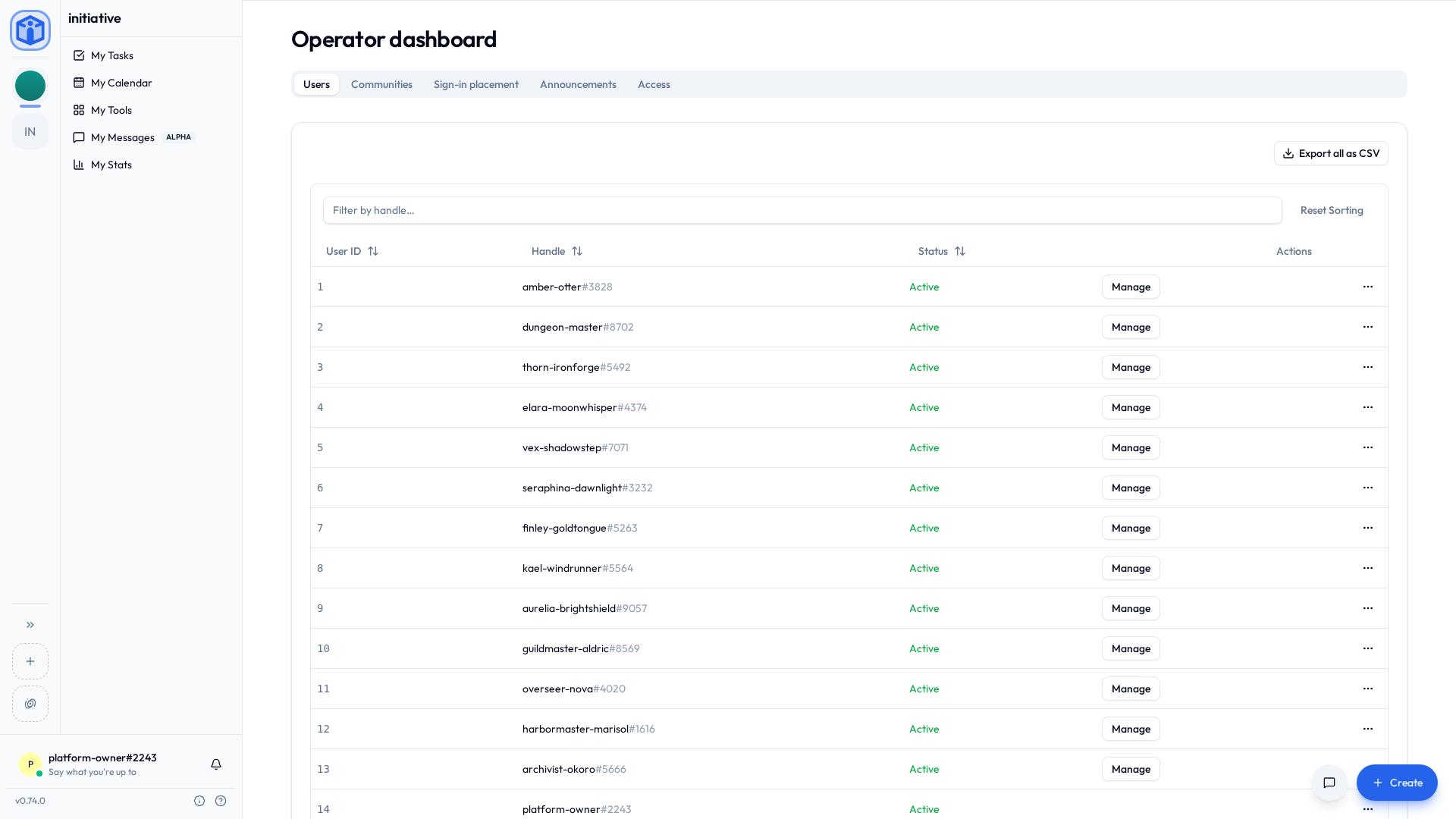
Manage opens everything you can change about one account:
- Username — the handle they're addressed by. The four digits after it stay as they are.
- Profile picture — take one down. Putting one up stays theirs.
- API keys — Revoke switches off every key the account holds, at once. The keys stay on the owner's list marked disabled, and they can make new ones.
- Suspend — puts the account in time out. They can sign in, and what they get is one screen: that they're suspended, the reason you gave, and who to contact. Their communities, their own settings and every power their platform role carries stay out of reach until you lift it. Nothing is deleted; lifting it hands everything back exactly as it was.
- Platform role — move them up or down the ladder. You can't grant a rung above your own.
Each of those asks for its own capability, so a moderator opening the same panel sees everything but the platform role.
The row's actions menu keeps the one-off jobs. It offers nothing but Export on an account above your own role.
- Reset password sends them a reset email.
- Resend verification email, shown on an account whose address isn't confirmed yet.
- Reactivate a deactivated account.
- Restore account, shown on a deleted account that hasn't been erased yet. It comes back exactly as it was — the same as if they'd signed in themselves during the window. See How long deleted things are kept.
- Export one account as CSV. Export all as CSV, above the list, takes the lot.
- Reset age question lets somebody answer the age question again, where they answered as under age. Nearly always a mistyped year. It clears the answer and nothing else — they answer again from scratch, and no birthday is recorded either way. See Asking members their age.
- Turn password sign-in back on, shown on an account marked Password sign-in off. Five wrong passwords or codes in fifteen minutes switch it off for fifteen minutes; a second time that day, an hour; after that, four hours each time. It comes back on by itself, or as soon as they reset their password from the emailed link, so this is for when they can't wait. Their passkeys work throughout, and so does anywhere they're already signed in. Moderator and above.
- Clear two-factor authentication, shown on an account with an authenticator app set up, while signing in with a password or an emailed code is turned on — those are the only sign-ins that ask for its code. For when their phone is gone and so are the recovery codes. It takes the authenticator off, signs them out everywhere and emails them; they sign in the way they usually do and set it up again. Moderator and above.
- Delete user, choosing how thorough it is:
- Deactivate — can't sign in; data preserved; reversible.
- Anonymize — personal details removed; their content remains as "Deleted user"; not reversible.
- Hard delete — everything removed, including authored content; not reversible.
Before a destructive delete, Initiative makes you resolve one kind of blocker: an account holding a community's only superadmin seat. Either the account holder hands the seat to another member first, or you break glass into the community and, from its own settings, appoint somebody in Settings → Users — or, where there's nobody left to hand it to, delete the community in Settings → Danger zone. Deleting a community always happens there, under a grant. Content they owned is released on the way out for the community's admins to claim.
Billing insights
On a server connected to a billing service, Operator dashboard → Billing opens a page of how things are going across every community: revenue, recurring revenue, refunds and chargebacks straight from the payment processor, beside counts of communities by plan, trials, overdue payments and cancellations.
It needs no grant, because it opens no community. Nothing on it names a community, a customer or a person — only totals and counts. Operators and owners hold it. A server with no billing service has no Billing tab.
Cross-community access: break-glass and time-bound grants
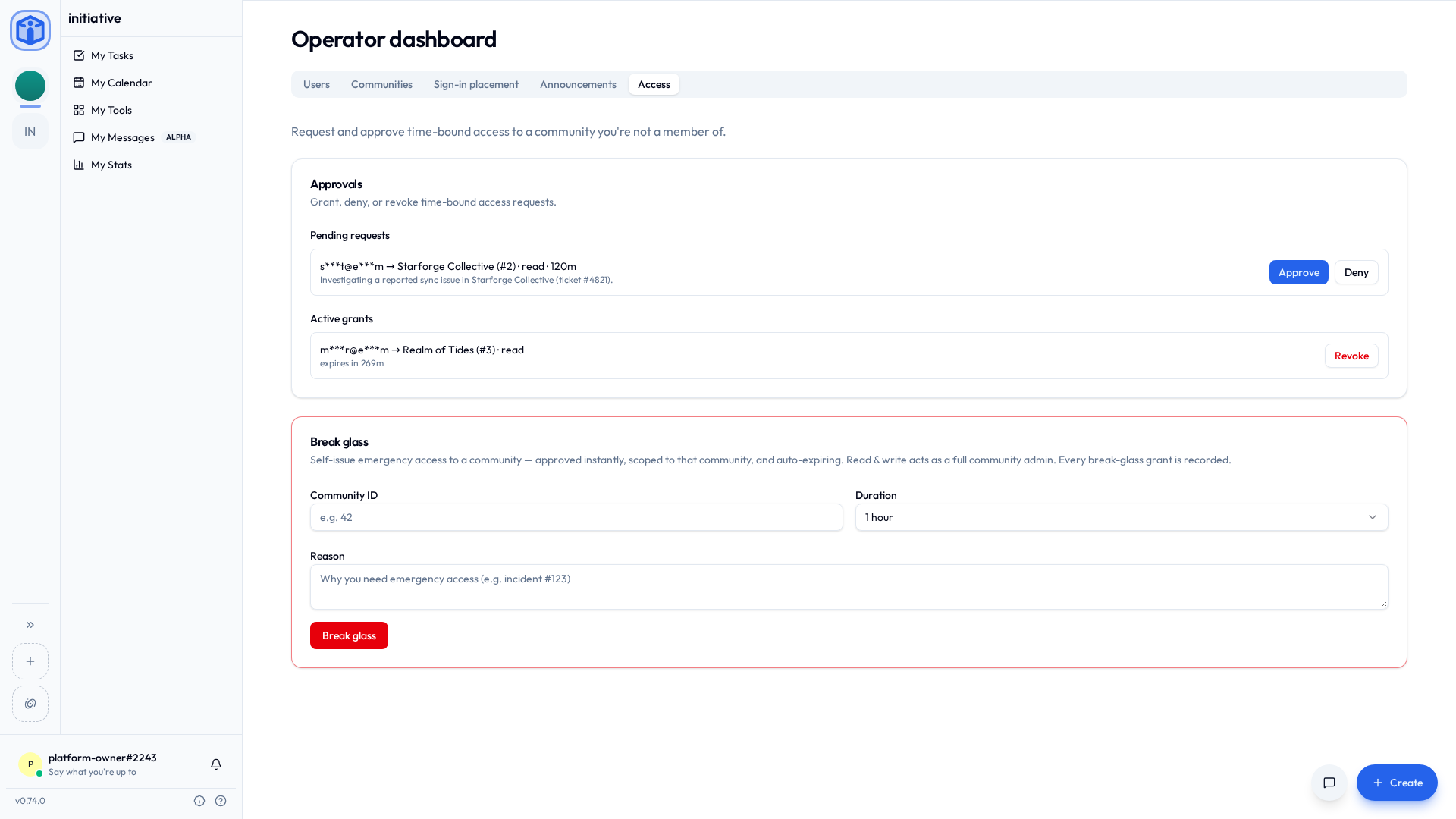
Nobody holds a standing back door into communities they don't belong to — not even platform operators. When platform staff genuinely need to reach a community's data, they take explicit, time-bound, recorded access instead. Manage it from Settings → Access.
What a grant can say
A request names what it reaches, and the two halves are asked for separately:
| What it reaches | |
|---|---|
| Content | What the community holds — read-only, or read-and-write. A read-write grant edits existing material; it doesn't author new material or manage members. |
| Settings | The community's configuration and nothing inside it, held at admin or superadmin — the community's own two rungs. Somebody helping with a moderation setting has no business in anybody's files, and this is how they don't end up there. |
Ask for one, the other, or both. Each is approved and recorded on its own.
The two paths
- Request and approve (Support and Moderator). Someone requests what they need, for a chosen number of hours, with a reason. An approver (Operator/Owner) grants or denies it, and it auto-expires.
- Break glass (Operator and Owner). For urgent situations, an operator can self-issue an emergency grant — approved instantly, scoped to that community, expiring automatically. Breaking glass issues both halves, the settings one at superadmin, because an emergency is no time to discover you asked for the wrong shape. Each is named and recorded separately, so afterwards the log says exactly how far it went.
A grant is never a membership
Whatever it reaches and whoever holds it, a grant runs out. Anything that would outlive it stays out of reach — a grantee can't answer a request to join an initiative, for instance, because the membership on the other side of that answer has no end date.
Breaking glass asks for your authenticator code
If you've set up two-factor authentication, breaking glass asks for a code, at the moment you do it. A passkey answers too, and so does one of your recovery codes, which matters, because the phone is the thing most likely to be missing in the hour you need this.
It's about your account, not anybody else's. A colleague setting one up asks nothing of you. The one exception: if you've required two-factor authentication for platform roles, everybody who can break glass is asked. Somebody whose single sign-on did the second factor on the way in is covered by that; anybody else without one is sent to Security in their own settings first. It takes about a minute.
Why it's built this way
Privileged access has to be deliberately taken, is scoped to one community, expires on its own, and leaves a record naming who took it and why. That's a stronger position than a permanent bypass nobody has to justify. More in How your data is kept separate.
Announcements
Operators and owners can write announcements — notices shown in a dialog to the people using the server. They're for a change somebody has to act on, or would otherwise be confused by. See Announcements.
What you decide per community
Settings → Platform → Communities lists every community on the server, and Manage opens what you set for one of them: its storage and member limits, whether it may configure its own sign-in, and a few features you can switch on or off. See File & object storage for the limits.
Help requests is one of those features, and it starts off. Switched on, the community's members get a form behind Ask for help, and what they send lands in your support project (see Where operations work lands) — so it can only be switched on once that project is set up. Off, the button gives them the support address from Who to contact, or isn't shown at all if there isn't one.
A community's status
Each row on Operator dashboard → Communities has a status, and there are four:
| Status | Its members | Its admins | In their community lists |
|---|---|---|---|
| Active | Everything, as normal. | Everything, as normal. | Listed. |
| Read-only | Read, but can't change anything. | Keep running it: settings, invites, the lot. | Listed. |
| On hold | Nothing. | Nothing. | Gone, for everyone. |
| Suspended | Nothing. | Nothing, settings included. | Gone for members. Admins see it with a lock. |
On hold and suspended both ask you to confirm first, because each takes everybody out in one click. Neither changes anything inside, and setting a community back to Active puts it all back.
- On hold tells the community's superadmins once, by email and in the app, that it's on hold and who to contact. The email also gives the date it's deleted if the hold is never lifted: 30 days on, unless you've changed the window.
- Suspended tells nobody directly. Its admins find the lock on their rail, and opening it says the community is suspended and gives them the address.
Neither status keeps you out. A grant or break-glass reaches a community whatever its status, which is how you look inside before deciding what happens to it.
Deleted communities
Deleted communities are in that list too, marked with the date everything in them is destroyed. Restore brings one back as it was — and where nobody is left who could run it, asks you who takes it over. See How long deleted things are kept.
Where operations work lands
Security notes, moderation reports, support requests and feedback each open a case in one community of your choosing: the operations community. It's an ordinary community in every respect, and its members work the cases like any other tasks.
It's all one page, Settings → Platform → Intake. Pick the community, then say which of its projects each kind lands in — or choose Set this up for me and get a ready-made project with its own statuses and fields. Pause a kind and it stops receiving; choose no community at all and nothing is routed anywhere.
Give security and moderation an initiative each, so only the people working those cases can read them. The page says so if two kinds share one.
The people who asked follow their cases from My Tickets. Pick the status that means Waiting on the requester, and the one their answer moves a case to; Set this up for me picks both. With none picked, requesters see Received, In progress and Closed, and never "Waiting on you". Answer them from the panel on the case, which is kept apart from its comments, so the team's own discussion stays the team's.
Who to contact
Whenever Initiative tells somebody to get in touch, it names an address. You pick those under Settings → Platform → Intake, in Who to contact: one general address, then one for each kind of work.
| When somebody sees | It names |
|---|---|
| Their account's time-out screen | Moderation |
| A suspended community | Moderation |
| A community on hold | Support |
| Ask for help, in a community that doesn't take help requests | Support |
Leave a kind blank and it uses the general address. It never borrows another kind's, so a moderation question doesn't turn up in the support inbox wondering why it's there. With neither set, the notice says to contact whoever runs this server, which is true but not very helpful to somebody who doesn't know who that is.
Security and Feedback have fields too. None of the notices above names them.
Related
- Announcements — telling everyone something.
- Configuration — foundational settings.
- Working with communities — the per-community roles, and the superadmin seat.
- How your data is kept separate — the access model behind all of this.