Email
Initiative sends email for account verification, password resets, invitations, and the daily overdue-task digest. Point it at an SMTP mail server from Settings → Platform → Email, as the owner.
Without email, the email things don't happen
Initiative works perfectly well without SMTP — it simply can't send verification links, password resets, or email notifications. In-app bell notifications carry on regardless, so nobody is cut off.
Worth setting up before anyone forgets a password, rather than after.
What you'll need
Outgoing mail credentials — your own mail server, or a transactional email service. Specifically: host, port, username, password, and a "from" address.
Settings
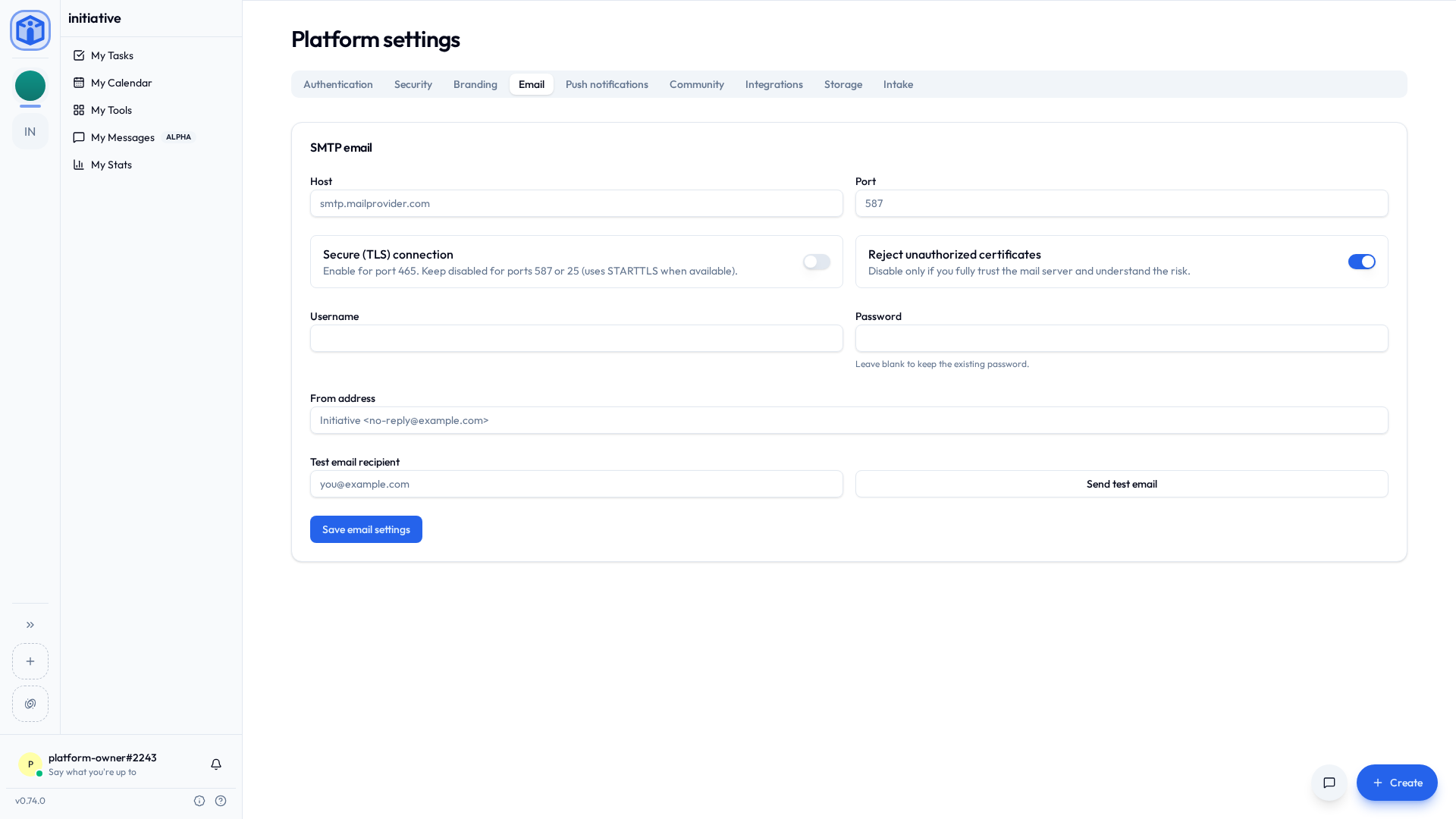
In Settings → Platform → Email:
| Field | Notes |
|---|---|
| Host | Your SMTP server, e.g. smtp.mailprovider.com. |
| Port | Commonly 587 (STARTTLS), 465 (TLS), or 25. |
| Secure (TLS) connection | Turn on for port 465. Leave off for 587/25 (they use STARTTLS when available). |
| Reject unauthorized certificates | Keep on. Turn off only if you fully trust the server and understand the risk (for example, a self-signed certificate on an internal relay). |
| Username / Password | Your SMTP credentials. (Leave the password blank when editing to keep the existing one.) |
| From address | The sender shown to recipients, e.g. Initiative <no-reply@example.com>. |
Test it before you rely on it
Send test email, pick a recipient, send. If it arrives, you're finished.
If it doesn't, check the host/port/TLS combination before anything else. It is almost always the host/port/TLS combination. Credentials come second.
Related
- Configuration — foundational server settings.
- Notifications — what gets emailed, from the user's side.
- Push notifications — the mobile equivalent.