API keys & integrations
Most people will never need this page, and that is a completely respectable way to live.
But if you want to connect Initiative to a script, another tool, or an AI assistant, API keys are how. A key is a long-lived credential that lets software act on your behalf, within limits you set.
Treat an API key like a password
Anybody holding your key can do what it allows, as you. So don't paste one into a public chat, don't email it to yourself, and delete the ones you've stopped using rather than leaving them lying around being technically valid.
Creating one
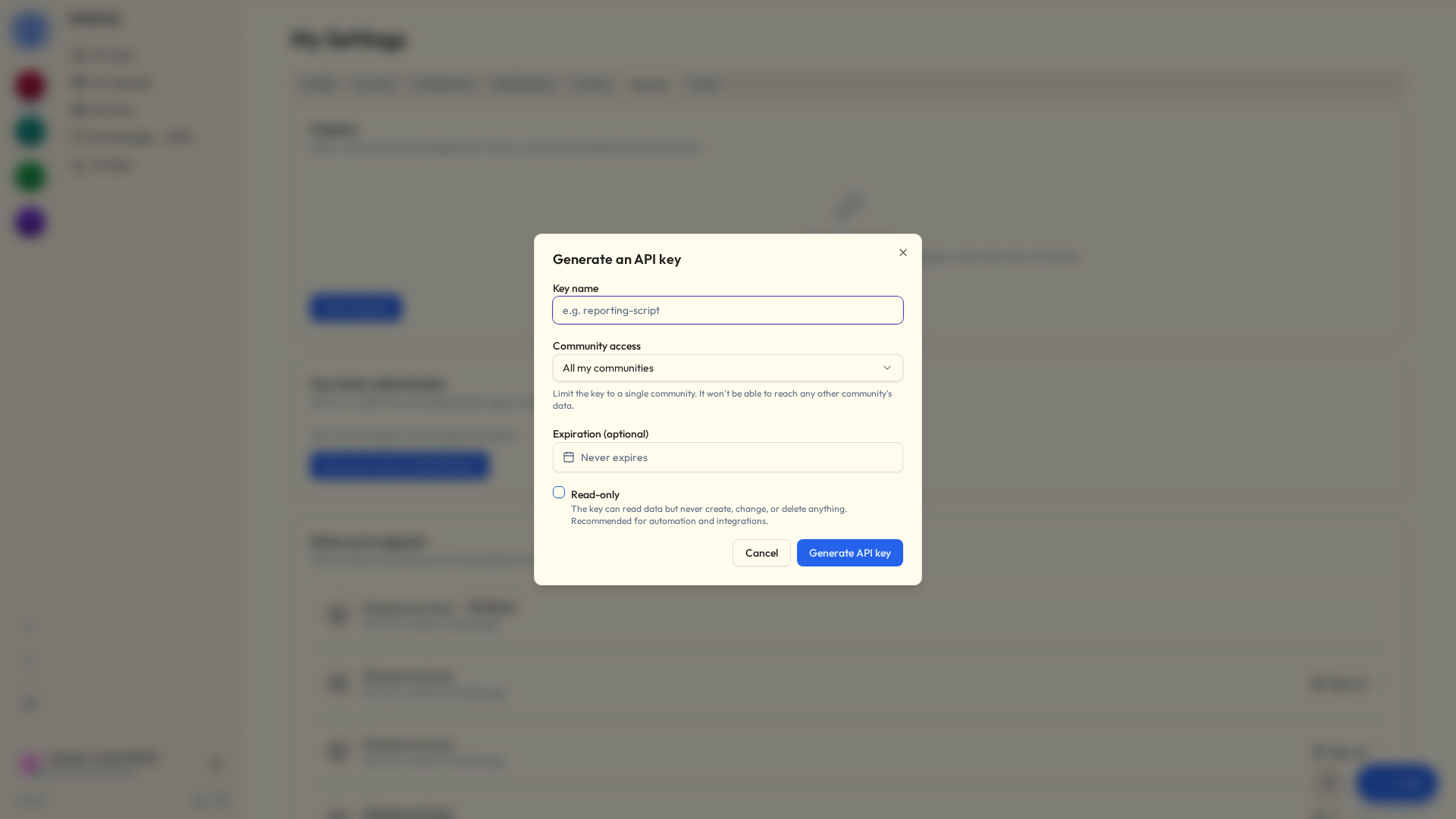
- My Settings → Security, and choose New API key under API keys. The rest happens in a dialog.
- Give it a clear name —
weekly-report-script, so future-you remembers what it's for. - Choose its limits (below).
- Generate it, and copy it right now — it's shown exactly once. Lost it already? No drama at all: delete it and make another.
Choosing limits
Each option narrows what a key can reach. Use the tightest set that still does the job:
| Option | What it does | Recommendation |
|---|---|---|
| Read-only | Reads data, never creates, changes, or deletes. | On, unless you specifically need writes. |
| Community access | Limits the key to a single community instead of all of yours. | Pin it to the one it needs. |
| Expiration | The key stops working after a date. | Set one for anything temporary. |
A read-only key pinned to a single community is the safest default going: it can't change anything, and it can't see any other group's data.
Managing keys
API keys lists each key's name, a short prefix (never the whole key), its scope, when it was last used, and when it expires. Delete asks first, then revokes it. Resetting your password revokes all of them at once, which is the fast way to shut everything down.
A key marked Disabled has been switched off for you: a moderator revoked it, or you pressed This wasn't me in one of your account emails. It stays on your list so you can see what happened. It won't come back on, so make a new one.
Connecting an AI assistant (MCP)
Initiative can expose a small surface to AI assistants through the Model Context Protocol (MCP), so an assistant can do things like "list my projects" or "add a task to the Auth project" — using your API key, bound by exactly the same access rules as everything else.
Worth knowing:
- It's off unless whoever runs your server turns it on.
- Every action runs as you, scoped by your key. An assistant reaches only what you could reach.
- The surface is curated — any key can read the initiatives you belong to and every kind of tool they hold (projects and tasks, files, wikis, queues, counters, calendars, galleries, notices and dashboards), the comments on any of them, and what any of them is linked to. It can also run the same search the app's own search page runs, ranked across the lot.
- A full-access key can create and edit those same things, link two of them together, move a task between statuses, and tick a checklist item off. Deleting (a link included), archiving, bulk edits, sharing and AI generation are never exposed, and a read-only key can't write at all.
Read-only, single-community, for assistants
That's the right call for most uses. Only reach for a full-access key if you actually want the assistant making changes — and each change is confirmed in the assistant before it runs.
For the technically minded — connecting a client
With MCP enabled (whoever runs the server sets ENABLE_MCP=true), the server is at <your-server>/api/v1/mcp/. Register it with your client using your API key as a bearer token — with Claude Code, for example:
claude mcp add --transport http initiative \
  https://your-server/api/v1/mcp/ \
  --header "Authorization: Bearer ppk_your_key_here"
The exposed tools are route-backed: each call goes through the normal API with your authentication and the same row-level-security access rules, so there's no ambient privilege. Running the server? See Configuration.
Related
- Profile & preferences — the rest of your account.
- Security & privacy — how access is enforced.
- Configuration — for whoever runs the server, enabling MCP.