Projects & tasks
A project is a board for tracking work. Tasks are the to-dos on it.
If you only ever learn one part of Initiative, make it this one. It's where basically everything happens.
Making a project
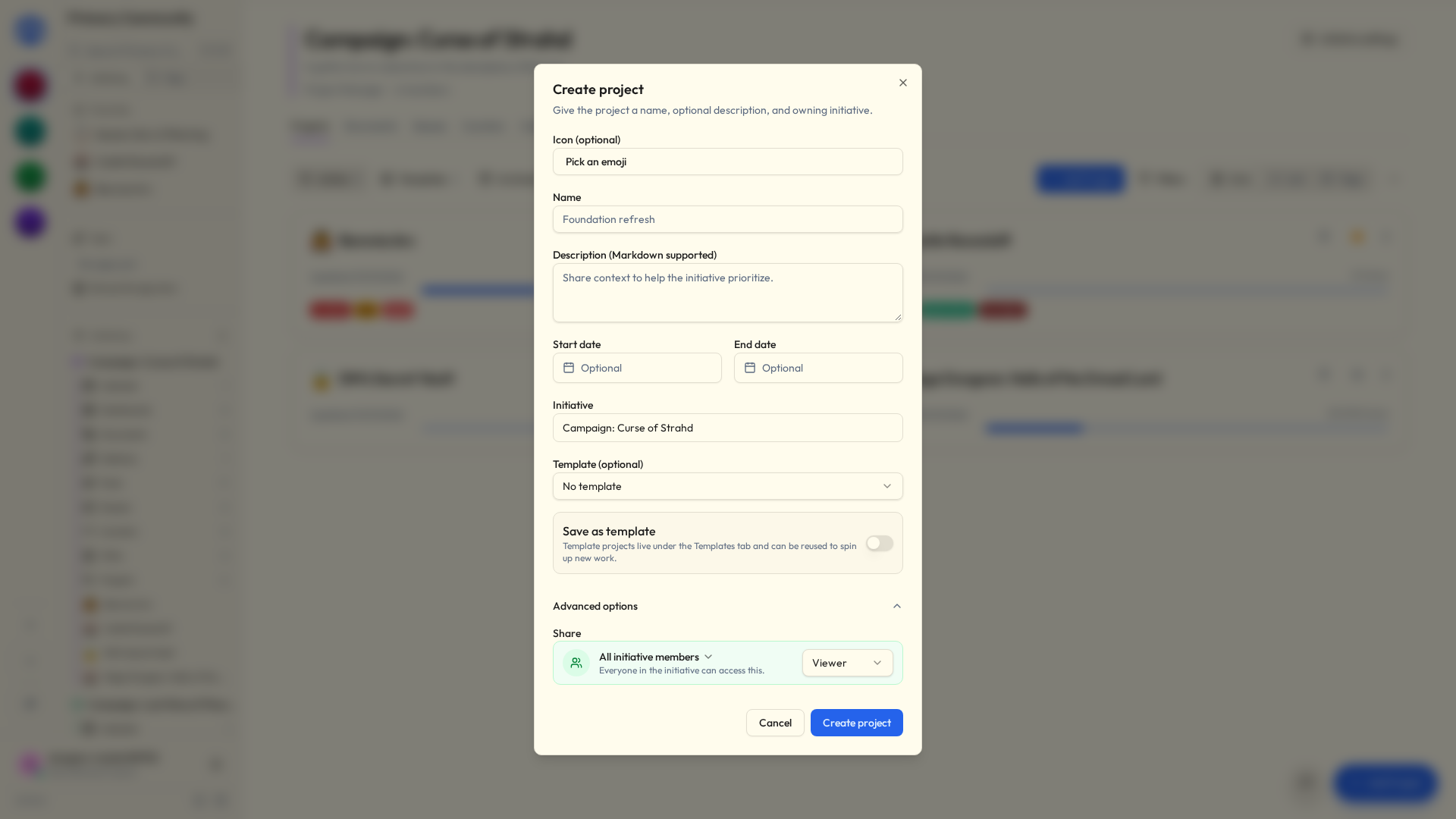
- Open the initiative it belongs in and click Add Project.
- Fill in:
- Name — the only required bit.
- Icon — an emoji, so you can find it at a glance.
- Description — optional.
- Initiative — which folder it lives in.
- Template — optionally start from one you saved earlier (see Templates).
- Create it. The board opens, empty and radiating potential.
The top of the project shows how far along it is and its dates, beside its status, tags and properties — the same header every tool has.
Favourites, pinning and your own order
Both live on each project's card.
- Add to favourites (the star) puts it in your Favourites list in the sidebar. Just for you: starring something doesn't inflict it on anybody else.
- Pin project marks it as pinned for everyone in the initiative. That one takes a project manager.
Drag projects on the first page of the list to put them in your own order.
Adding tasks
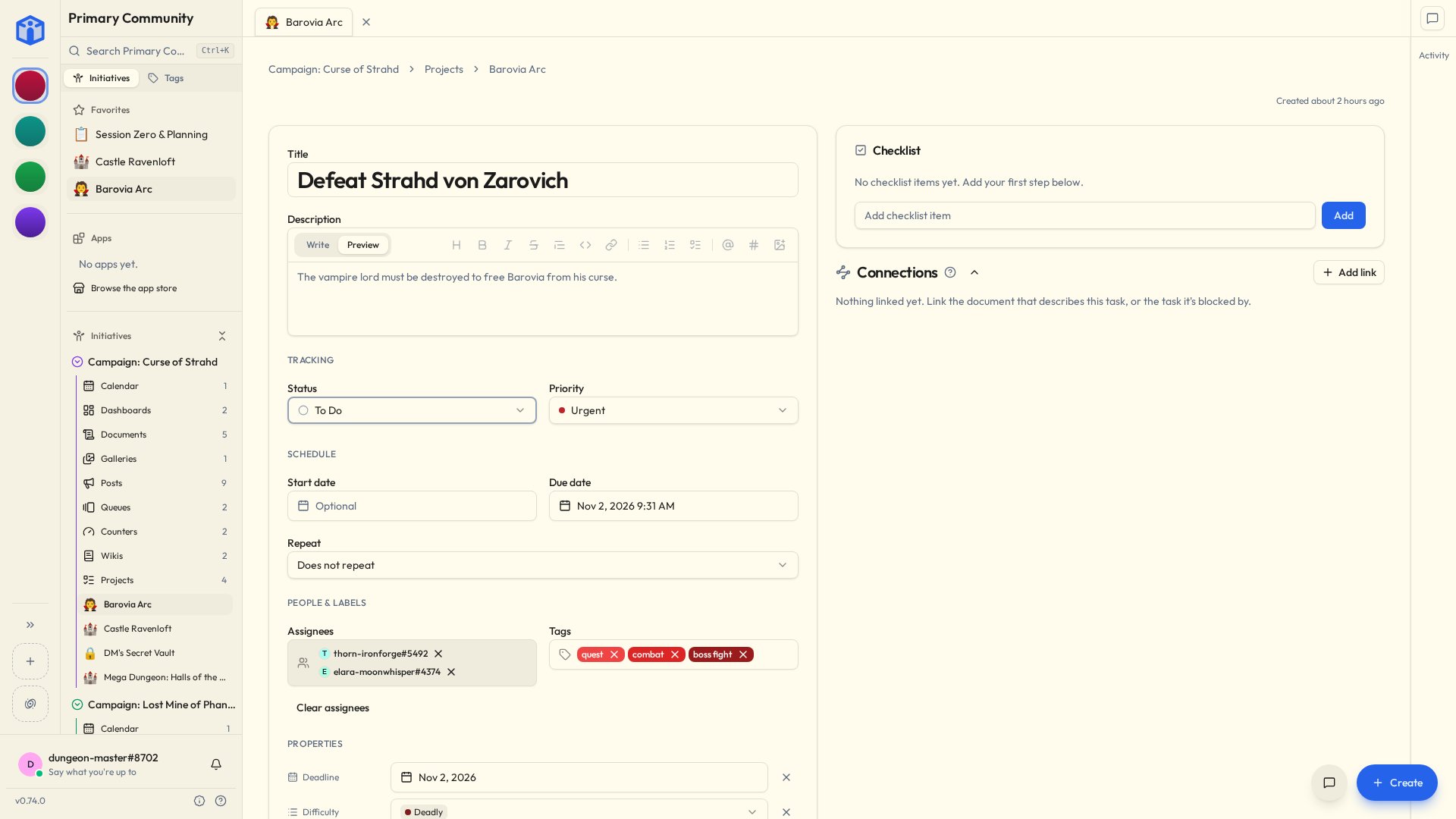
Click Add task. The quick form wants a title and maybe a description. That's enough. You can fill the rest in later, or never, and nothing will nag you about it.
Need more detail now? Expand Advanced details for everything else, sorted into Tracking, Schedule, People & labels, and any custom Properties your initiative uses.
Editing a task later shows you the same sections in the same order, so there's one layout to learn instead of two.
A task can hold:
| Field | What it's for |
|---|---|
| Title | A short name. Required. |
| Description | The detail. Formatting works, with a Preview, and so do @, # and [[ ]] — see Mentions & links. Paste or drag in a screenshot and it lands where your cursor is; take it back out, or leave without saving, and it's gone from storage too. |
| Status | Where it's got to. |
| Priority | Low, Medium, High, or Urgent. |
| Start date | When work should begin. |
| Due date | When it's due. Optional, and you don't have to be brave about it. |
| Assignees | One person or several. |
| Checklist | The smaller steps, ticked off, with a progress count. |
| Tags | Labels for finding things later — see Tags. |
| Recurring | Make it come back on a schedule. |
Statuses
Every project starts with three:
To Do → In Progress → Done
You can rename them, add your own, and give each one an icon and colour, from Project settings → Task statuses. Each one still belongs to one of four underlying stages — Backlog, To Do, In Progress, Done — which is how "archive done tasks" knows what counts as done. Backlog is there if you want a holding pen ahead of To Do; new projects just don't start with one.
Delete a status you don't want and its tasks move somewhere sensible — you pick where, or let them fall to the project's default. The only one you can't delete is the last one standing.
Checklists
Break a big task into steps. As you tick them off, the task shows its progress — "⅗ items" — which is more motivating on a bad Tuesday than it has any right to be.
Enter starts the next line. Paste a list and you get one item per line, which saves a surprising amount of your life.
Good for the tasks that are secretly three tasks wearing a coat.
Recurring tasks
For the things that keep coming back: the weekly report, the monthly review, the bins.
Pick the rhythm — daily, every weekday, weekly, monthly, annually, or Custom… for the second Tuesday, the last weekday of the month and their friends. The next few dates are listed under the form.
Finishing one makes the next, so there's only ever one to deal with. The strategy decides its date:
| On schedule | Counted from the dates. Pay the rent on the 1st, even if last month's went in on the 9th. |
| After completion | Counted from when you finished. Water the plants a week after you last did, not a week after you meant to. |
Upcoming dates show on calendars too, and open the task you're on now.
To change the repeat or stop it, edit the current task. That counts from here on, and the finished ones are left alone.
Changing one of them
Edit or delete a repeating task and Initiative asks which ones you mean:
| Just this task | This one changes. The next comes back the way the series was. |
| Tasks after this point | This one and every one after it. |
| All tasks in the series | Every one, finished ones included. It reaches the title, description, priority, assignees and tags. Dates stay each task's own. |
Dragging a repeating task on a calendar asks too, minus the last option.
Skip this occurrence, in the task's menu, moves it on to its next date without finishing it. That's the week the bins weren't collected because of the bank holiday. Deleting just this task does the same, so the series carries on — unless it was the last one, in which case it's simply deleted.
Deleting from here on ends the repeat. Deleting all of them sends the finished ones to the trash as well, where they can be recovered.
The bit where you get confetti
Finish a task that's assigned to you and Initiative marks the occasion — confetti, a "+1 Heart", a "Natural 20", or a shower of gold coins.
Pick your preferred celebration in My Settings → Preferences, or set it to None if you'd rather your accomplishments passed in dignified silence.
There's optional sound and vibration too, for anyone who wants the full experience. No judgement. Some weeks you need the coins.
Three ways to look at a board
The same tasks, three ways of looking at them. The switcher sits at the top of any project board.
Switching changes nothing about the tasks themselves — only what's on your screen — so there's no wrong choice here and nothing whatsoever you can break by trying one.
Table
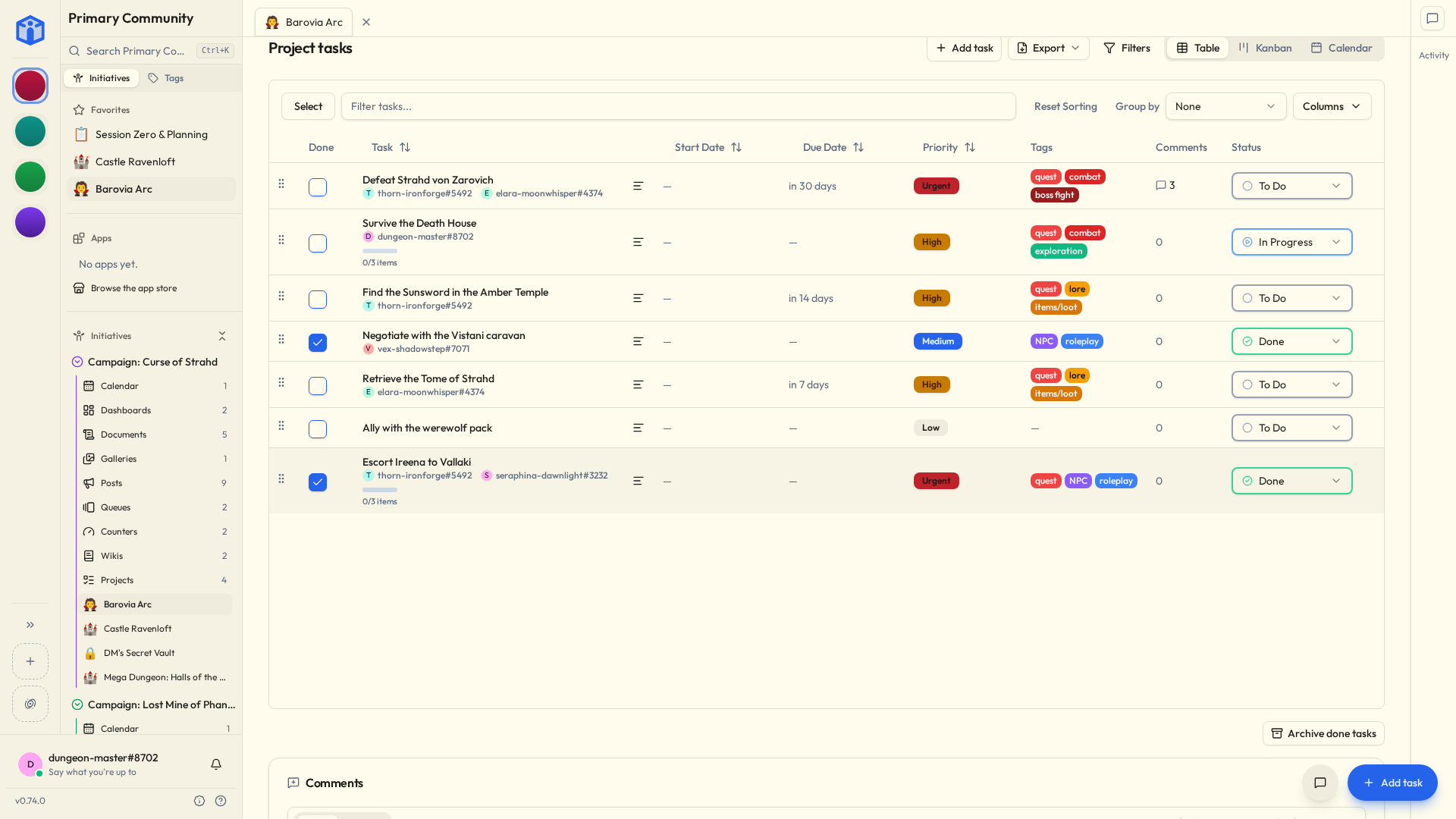
A spreadsheet-style list. One row per task, with columns for status, priority, dates, assignees and the rest.
Best for: scanning a lot of tasks, sorting, and editing several at once.
- Click a column heading to sort by it. Hold Shift and click another to sort by both.
- Group rows by status, priority or assignee.
- Filter down to exactly what you want.
- Select several rows and edit them together.
Kanban
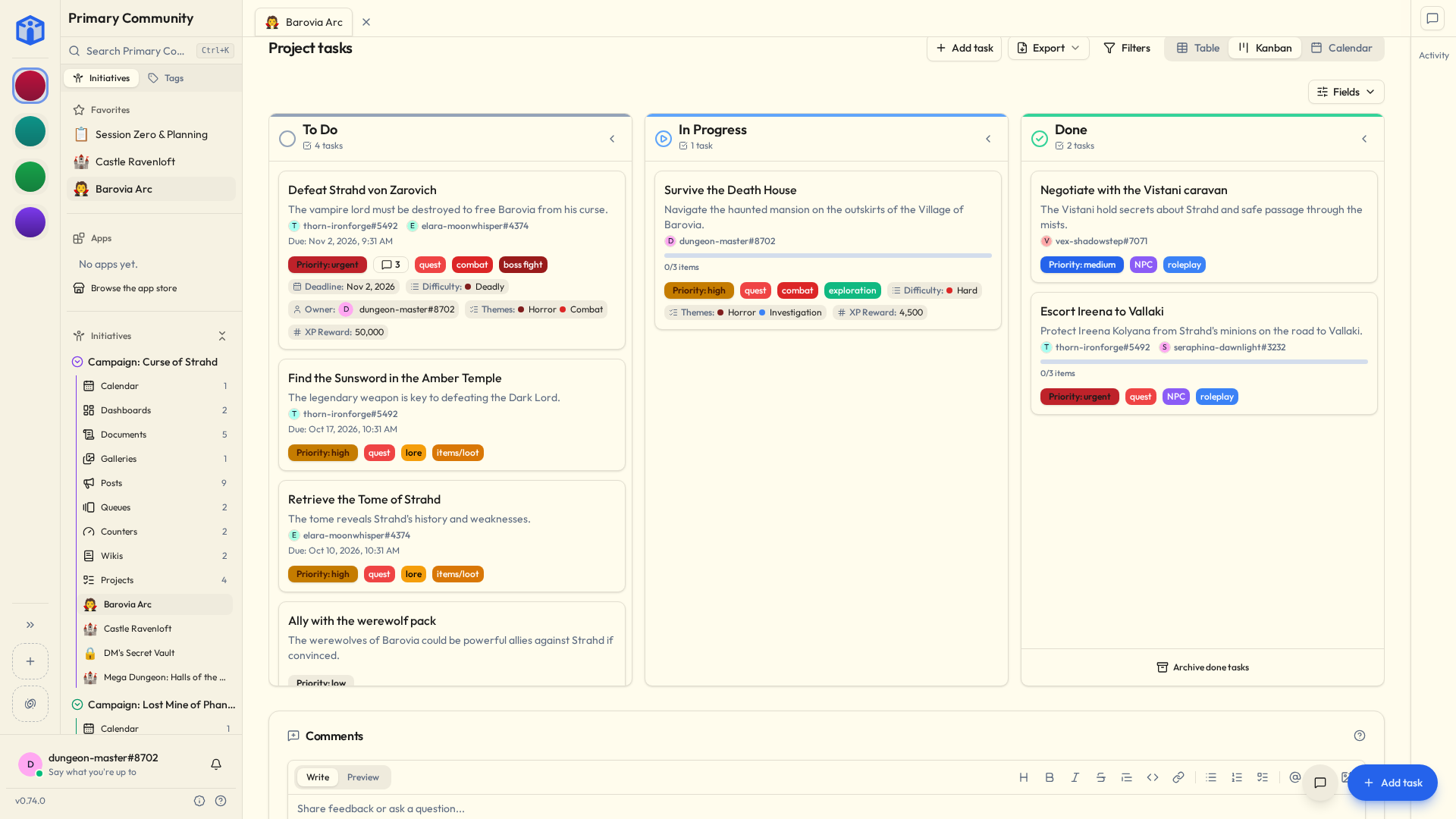
Cards in columns, one column per status. Drag a card along as the work moves.
Best for: seeing the shape of what's happening, and moving things along without opening a single dialog.
- Drag and drop between columns to change status.
- Collapse a column you're deliberately not thinking about.
- Fields decides what a card shows. Turn off what this project doesn't use — priority, dates, tags, the checklist bar, the comment and blocker counts, any custom property — and the cards get shorter and quicker to read. It's Fields rather than Columns because on a board the columns are your statuses. Remembered per project, so a board you've never fiddled with shows everything it has.
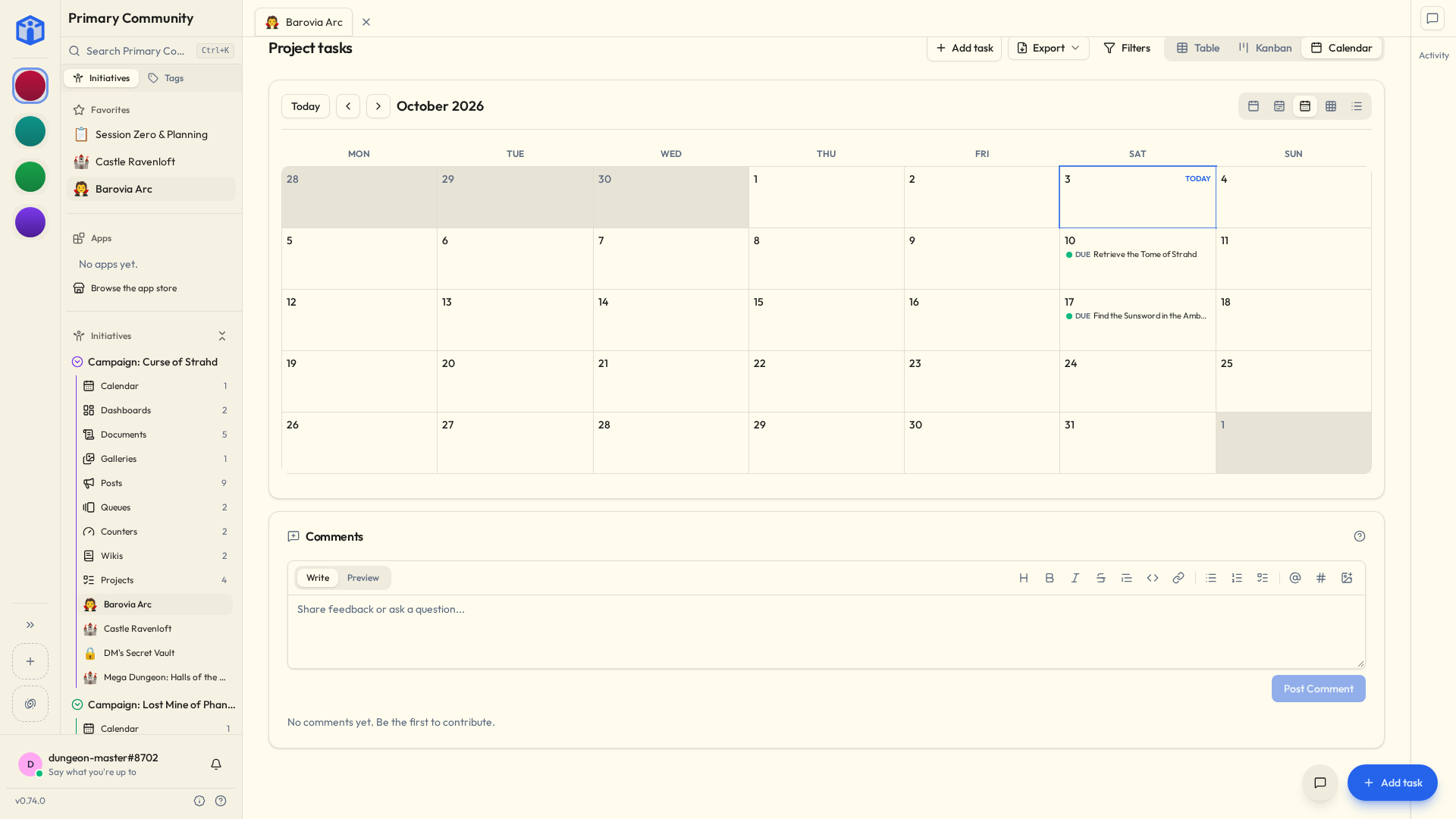
Calendar
Your tasks laid out by their start and due dates.
Best for: seeing when everything lands, and noticing the Thursday onto which you have cheerfully scheduled six deadlines.
So which one?
No wrong answer. A rhythm that works for most people:
- Kanban day to day, for nudging things along.
- Table when you're tidying up, sorting, or editing a lot at once.
- Calendar when you're planning ahead, or working out how bad next week is going to be.
Your choice is yours alone and it's remembered, so you can settle into one without inflicting it on anybody else.
When a board gets busy
- Filter by status, priority, assignee, due date and more.
- Sort by any column. In Table view, hold Shift and click more columns to sort by several at once.
- Group by status, priority or assignee.
- Select several tasks and act on them together — status, dates, assignees, priority, tags, or archive, all in one go.
Archive things, don't delete them
Finished tasks don't need deleting. Archive sweeps them off the board while keeping the record — there's a one-click Archive done tasks for the end of a push.
And you can filter them back into view any time you'd like documentary evidence of how much you actually got done, which is useful when somebody asks and also just nice.
Project settings
- Details — icon, name, description, dates, tags.
- Access — who can see or edit it. See Sharing.
- Views — the saved filter sets everyone in the project can pick from, and which view it opens on.
- Task statuses — your workflow.
- Advanced — save as a template, duplicate it here or into another initiative, export, archive, delete.
Moving a task to another project
You can move a task from its menu. One thing that catches people out: because every project can have its own statuses, a moved task restarts at the new project's default status.
Nothing's broken and you haven't lost anything. Set the new status and carry on.
Duplicating a task
Duplicate task, in the task's menu, makes another beside it with "(Copy)" on its name, keeping its links to other tasks. Its checklist comes across unticked, because the copy hasn't done any of it yet.
Templates
Set a project up exactly how you like it, then make it a template — from Status at the top of the project, from Project settings → Advanced, or by ticking Save as template when you create one.
Next time, start from it and skip the fiddling. Its checklists arrive exactly as the template has them, ticks and all; duplicating an ordinary project starts them over. Ideal for anything you do more than once: every new client, every event, every production. Nobody forgets the step at the end, because the step at the end is already there.
Exporting a project
Export a project to a portable file — an offline copy, a move somewhere else, or a backup of one specific project. It imports back in later. It's in Project settings → Advanced, next to deleting it, and it belongs to the same people: whoever owns the project, and anyone who can see everything in its initiative.
The task list has an Export of its own: the tasks you've filtered to, or the ones you've selected, as a PDF, a spreadsheet or Markdown.
People are named by handle
An export identifies assignees, event attendees and person-type fields by handle (foobar#1234), because a handle is the same in every community and an email address isn't.
Archiving and deleting
- Archive hides a finished project without losing anything. Unarchive whenever.
- Delete sends it to the community Trash, where an admin can restore it until the retention period runs out.
Related
- Mentions & links — saying a task is blocked by another.
- Tags — labelling and filtering.
- Your space — all your tasks, from every project and community at once.