Initiative roles
Every member of an initiative holds a role — a reusable bundle of permissions that decides which kinds of tools they can use here.
Roles save you setting permissions person by person. Describe the kind of member once, then hand it out.
Roles vs. sharing
Two different questions, and both apply:
- Roles answer "what kinds of things can this person do in this initiative?" — can they make projects, or only look at them?
- Sharing answers "can this person see this specific project or file?" — covered in Sharing projects & files.
So a role might let somebody create files in general, while an individual file is still only visible to the handful of people it's been shared with. Both things are true at once and they don't fight.
What a role can grant
Permissions are grouped by tool, and each offers View, Create, or neither:
| Tool | Permissions |
|---|---|
| Projects | View, Create |
| Files | View, Create |
| Queues | View, Create |
| Counters | View, Create |
| Events (calendar) | View, Create |
| Dashboards | View, Create |
| Posts | View, Create |
| Galleries | View, Create |
| Wikis | View, Create |
So a "Contributor" might view and create projects and files, while a "Guest" only views them and has no idea the queues exist.
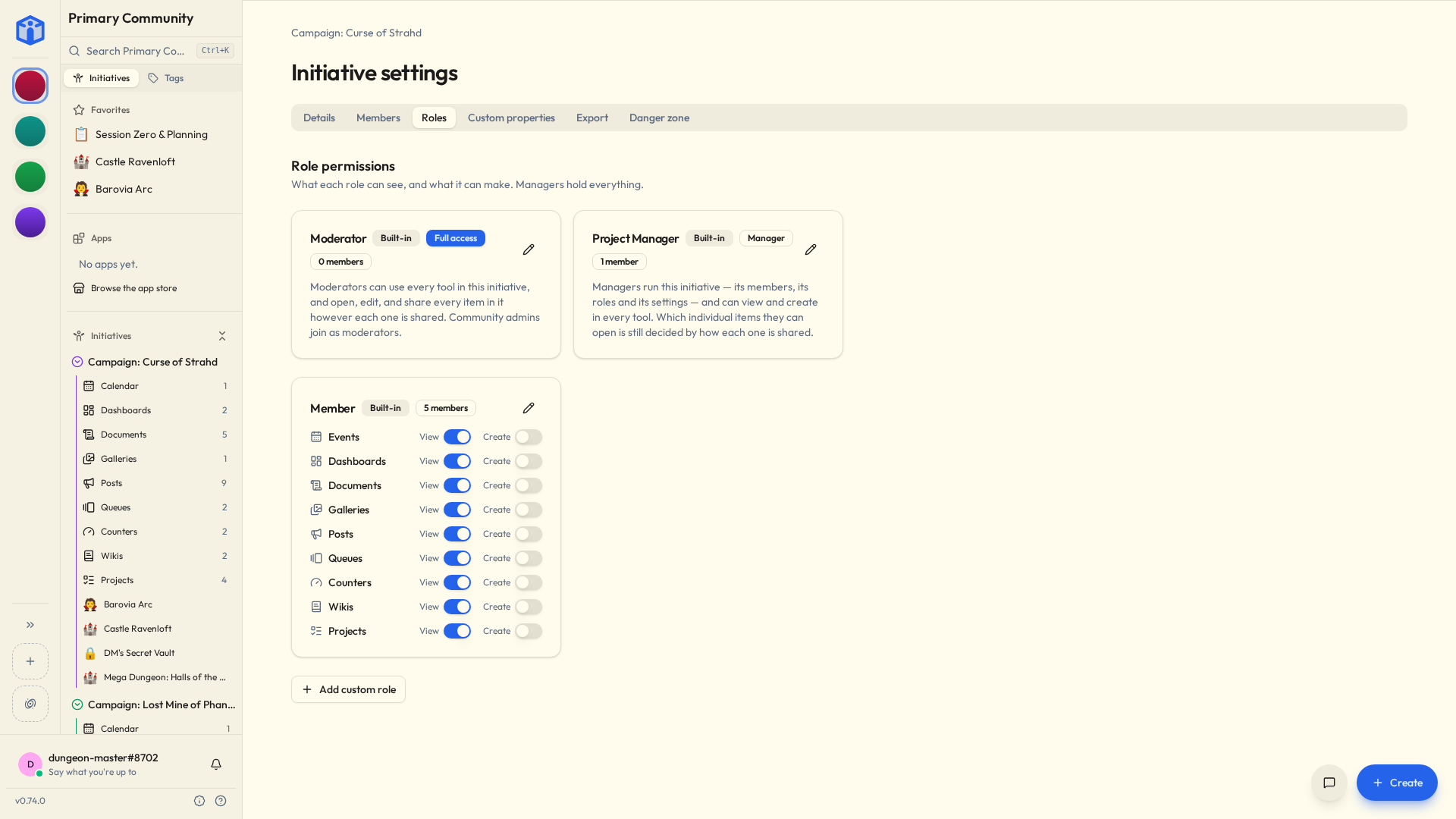
The built-in roles
Every initiative arrives with three roles you didn't make and can't delete.
Manager (also called project manager, or PM) is the lead role: every tool permission, fixed, and whoever creates an initiative starts as one, unless they're a community admin. Per-item sharing still applies to them — a Manager can create files all day and still not see the one three people are quietly working on.
Moderator is the role that overrides sharing. A Moderator reaches everything in the initiative whether or not it was ever shared with them, and can change who else has access. That's what full access means, and no other role gets it — not a custom one, not Manager. It isn't a setting you've failed to find. Moderators also get the initiative's Moderation page, where reports land.
Handing out Moderator is a community admin's job, and so is taking it back. Managers staff everything else. Admins who join an initiative arrive as Moderators, because that's the standing they already had, and somebody promoted to community admin moves up to Moderator in every initiative where they aren't already a Manager.
Member is where everybody else starts, and the one built-in whose permissions are yours to set. Making the initiative asked what members can do; the answer lives here, and you can change it whenever you like.
Moderators see everything. Everything.
Because Moderator overrides per-item sharing, anything kept private to a few people is still perfectly visible to one.
So hand it to the people who genuinely need the whole picture — not as a general reward for being helpful, and not because someone's been around a long time.
Making your own roles
- Open the initiative's settings → Roles.
- Add custom role and name it something your group will actually recognise: "Director", "Cast", "Editor", "Observer".
- Tick what it should be allowed to do.
- Save. It's available next time you add or edit a member.
Name roles for people, not for permissions. "Volunteer" is friendlier and clearer than "View-only contributor", and nobody has ever been pleased to be called a view-only contributor.
Handing them out
When you add a member, you pick their role. Change it later from the same Members settings — changes take effect immediately, no re-login, no waiting.
Related
- Sharing projects & files — the final, per-item layer.
- Working with initiatives — creating initiatives and adding members.