Working with communities
A community is your group's workspace. This page covers moving between them, getting people in, and — if you're the one running it — keeping the place from descending into chaos.
Not in one yet? Start with Your first community.
Switching between communities
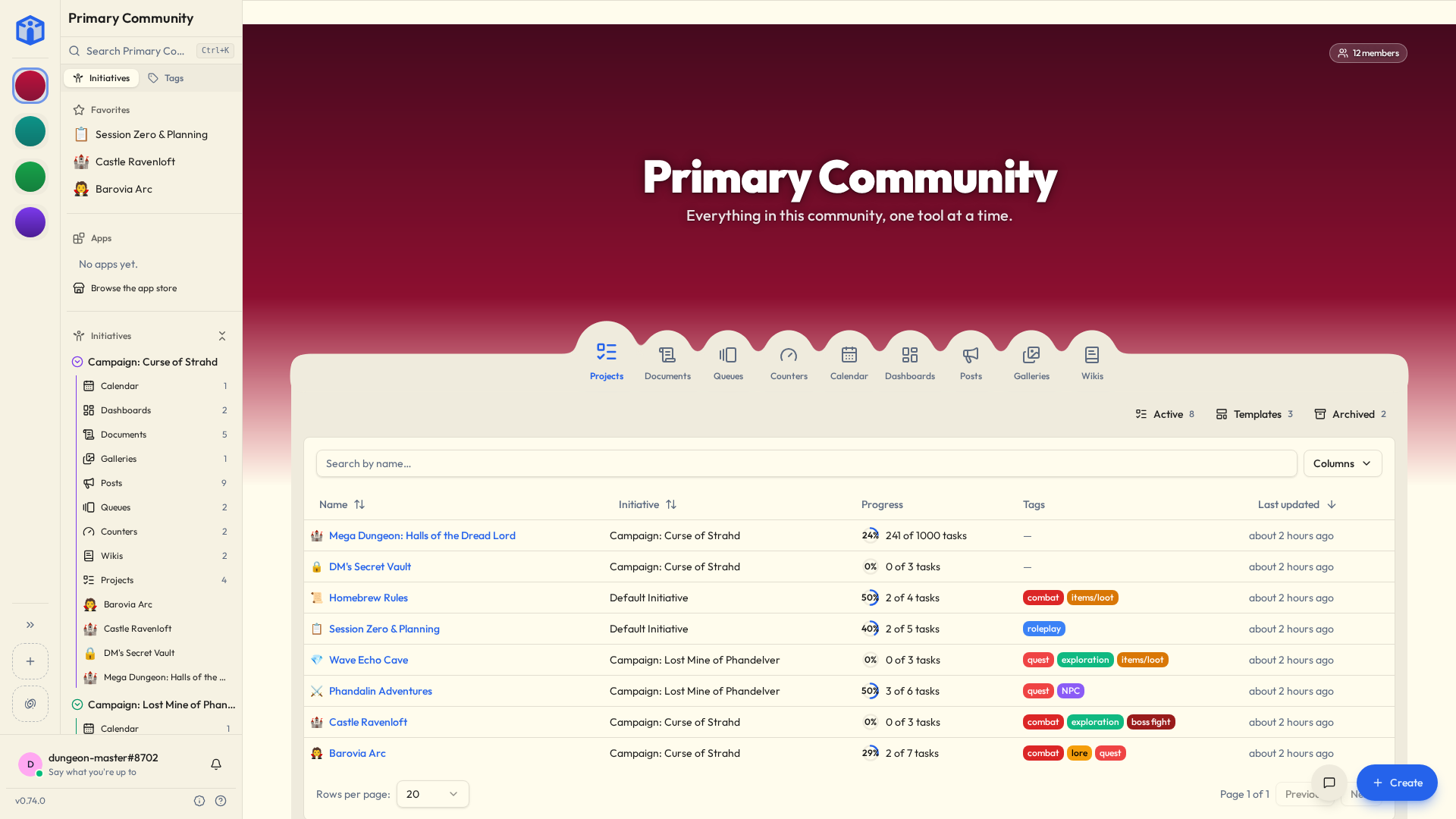
The community rail runs down the far-left edge of the screen: one icon per community, with the highlighted one being where you currently are. The Initiative logo above them takes you to your own corner of things.
Click any icon to switch. Everything follows you over — sidebar, initiatives, projects. Each community is completely independent; work, people and settings never cross between them.
Two communities at once
Open Initiative in two browser tabs and each one can sit in a different community, quite happily, simultaneously. Useful on the days when the work team and the volunteer thing both want you and neither will be reasoned with.
Want more than an icon? The double arrow at the foot of the rail, Expand community list, opens every community as a card — banner, description, categories, where it is (if it has said), and how many members there are and how many are online. Reorder there lets you drag them into whatever order makes sense to you, which is rarely alphabetical.
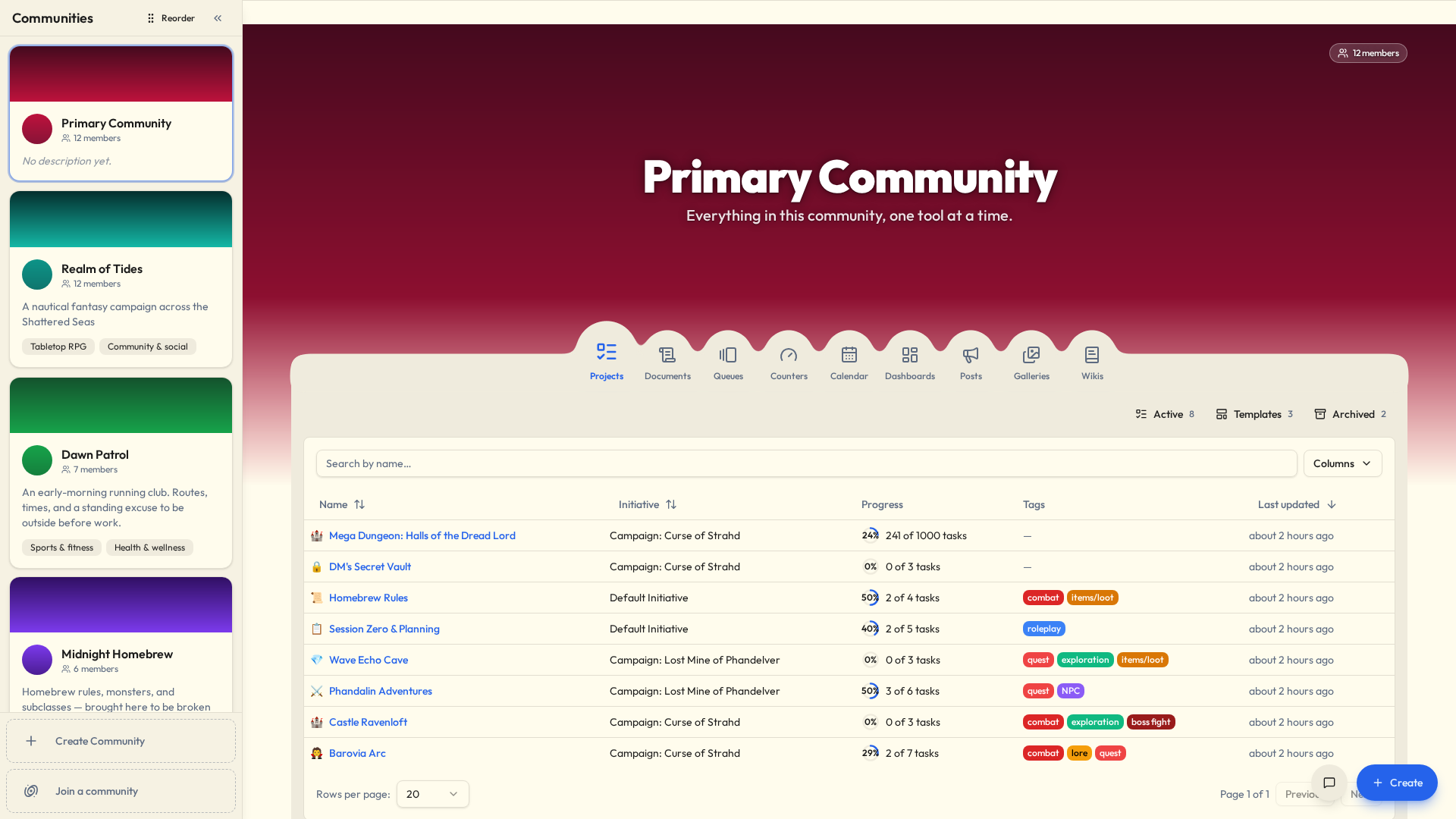
The rail also keeps up with itself. If an admin adds you somewhere, or a group login sync brings you in, or a community you're already in lists itself publicly, the rail updates where you're standing. No reloading.
The community front page
Opening a community drops you on its front page. Its name sits on the banner, with where it is underneath if it has said. Its tools run across the top as circles — pick one, and you get everything of that kind that's reached you: shared with you directly, with a role you hold, or with everyone in an initiative you're in.
Only the tools your initiatives actually use turn up, so a community that has never once needed a queue is not given a Queues circle to look at and feel vaguely guilty about.
Search narrows by name; the Name, Initiative and Last updated headers sort. Both reach everything in the community, not just the rows on screen, so nothing hides on page two. All of it lives in the web address, so you can bookmark or send the exact view you're on.
Community admins get the same page. Their authority is unchanged — open any initiative and they see all of it — but the front page is a reading list, not an inventory of everything in existence.
Finding a community to join
Most communities are private, and you get in by invitation. Some list themselves publicly, and those you can find on your own.
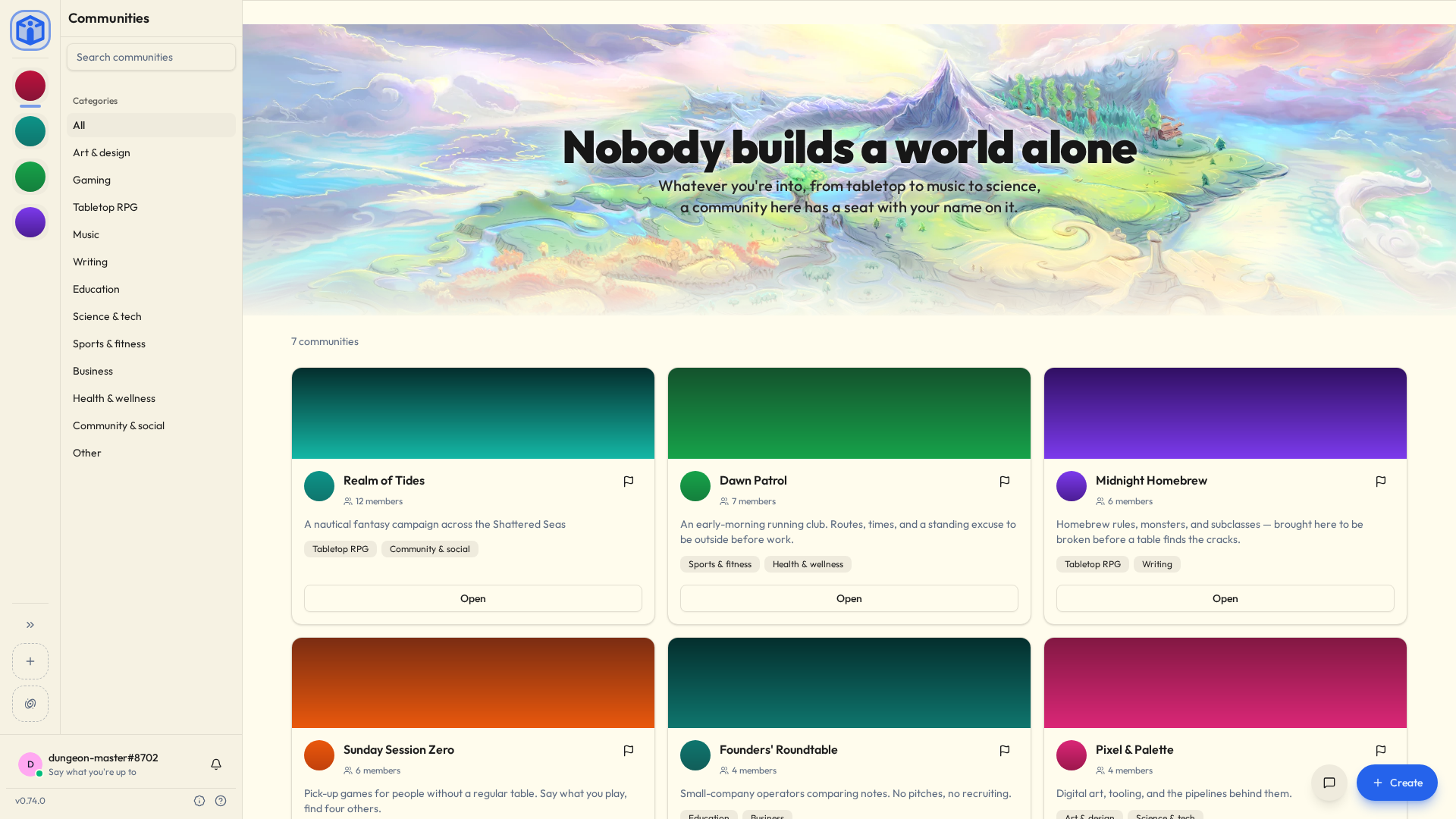
Join a community is its own dashed button at the foot of the rail, just below the + that makes a new one. It opens the community directory: a card per listed community, with its description, categories, where it is, member count, and how many are online right now.
Search by name or by place, browse by category, and join straight from the card — no invite, no waiting, no approval queue, no email that arrives four days later. You're a member the moment you click.
Searching by place covers a city, a neighbourhood, a postcode, or a whole country by name: "Japan" finds everything in Japan, whatever language you type it in.
Near me, above the cards, puts the closest communities first: the ones within about an hour's drive (whichever side of a border they're on), then the rest of your country, then the ones that haven't said where they are, then everywhere else. It hides nothing; it only sorts. This device remembers it for next time, and the × beside it forgets it.
What you searched, which shelf you're on and where you're near all live in the address, so a filtered directory view is a link you can send somebody.
The first time you join a listed community, you'll be asked your date of birth. Listed communities can be found by anyone signed in, so they're open to people you've never met, and you need to be 16 or older to join one. You're asked once, ever, and then never again.
It's about the community, not the button
Anyone signed in can find a listed community, so joining one asks your age however you got there — the directory, or an invite into it. If you were put in one without ever being asked, it asks the first time you open it. A community that hasn't listed itself never asks, whoever invites you. Initiative asks every account its date of birth once, so if you've already answered, joining asks nothing more.
The date is kept encrypted
It's kept encrypted and used only to check age limits. It's never shown back to anyone, and it isn't sold or shared. See Data and compliance.
Not every server has a directory
It's a server-wide feature that starts switched off. If there's no Join a community button, this server hasn't turned it on and everything here is invite-only. That's the platform owner's call — see Configuration.
Listing your community (admins)
From Community settings → Community:
- Turn on List in the community directory.
- Pick at least one category. This is how people find you, so pick what you're genuinely for.
- Certify that the community holds no adult or illegal content.
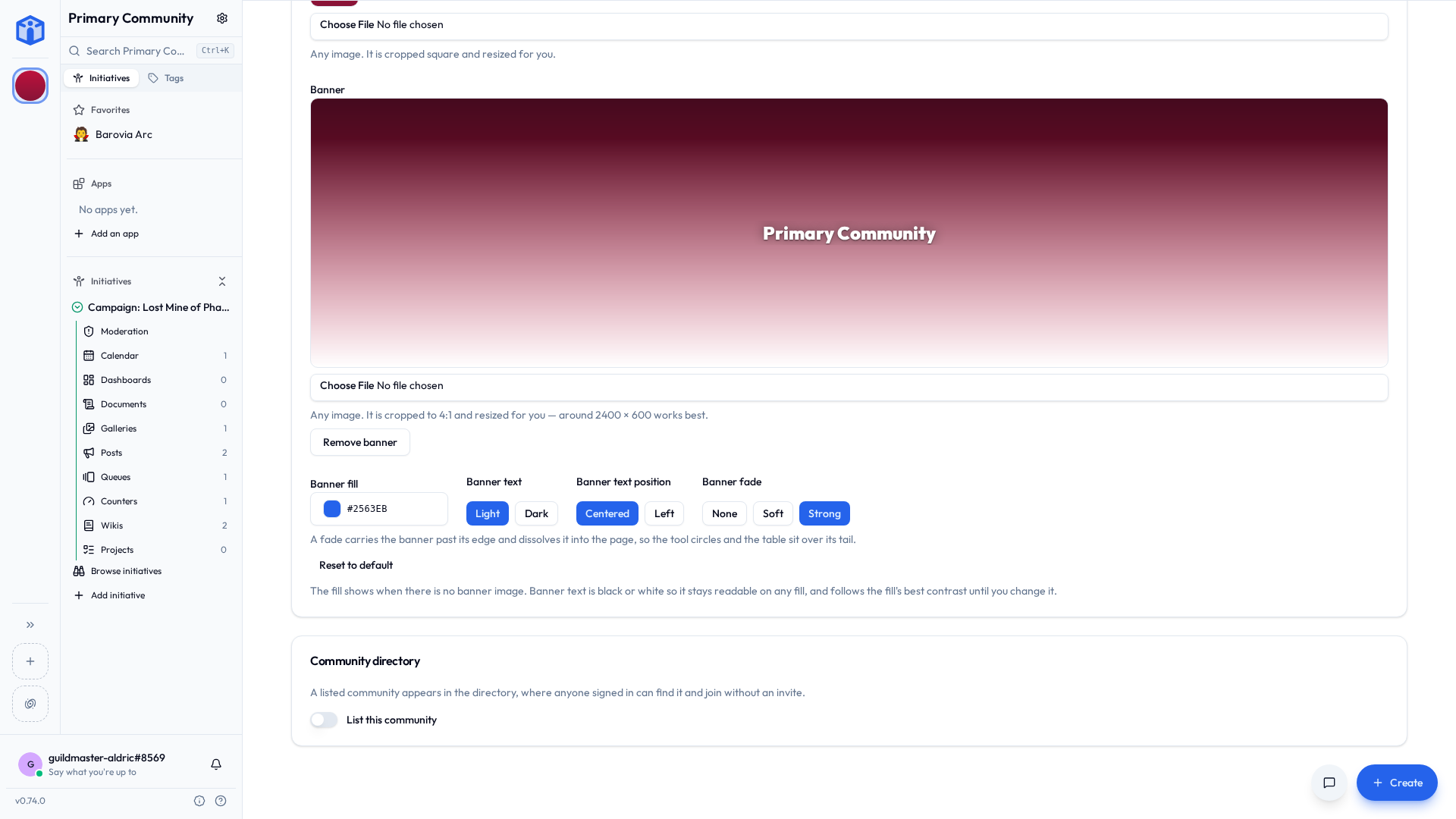
You can unlist at any time. Everything carries on exactly as before; it just stops appearing to strangers.
That certification is the entire content rule — if you can't honestly tick it, you don't get listed. One other thing keeps a community out regardless: a member limit of one, because then there'd be no seat for anyone to take. (Nearly full is fine. It's the limit itself that has to leave room.)
Give new arrivals somewhere to land
A listed community whose initiatives are all invite-only leaves every newcomer looking at a beautiful, entirely empty page, quietly wondering what they did wrong on the way in.
Initiative spots this and tells you, with the fix attached: mark one initiative open so people can join it themselves, or auto-join so they simply arrive already inside it. See How people join an initiative.
Saying where your community is (admins)
Some communities are about a place: the allotment, the street, the Thursday quiz at the one pub with parking. Location, under Community settings → Community, says where. It's optional, and as vague or as exact as you like: "Japan", "Lyon", or the full address of the hall with the temperamental boiler.
Start typing and places appear underneath, the ones closest to you first. Pick one and the community goes on the map, which is what puts it in front of people looking for something nearby. Keep typing after you pick (a street in front of the city, say) and it stays on the map.
Something the list has never heard of, like "the old mill", is fine. It shows on the card all the same; it just can't be near anyone.
The card shows the location exactly as you typed it, and tapping it on your community's front page opens a map.
Place name is optional and goes in front: "Queen Anne Neighborhood, Seattle". Keep it short. A card gives the whole location one line, and when the line runs out it's your place name that gets trimmed, so the place itself survives.
Listed means anyone can see it
A listed community shows its location, exactly as typed, to everyone browsing the directory. If you meet in somebody's living room, the city is plenty.
Where the suggestions come from
The places are GeoNames data (every town of a thousand people or more) that ships with the app, so typing a place sends nothing anywhere. "Closest to you" starts from the place you've already picked, or else from the city your device's time zone is named after. A picked place saves its country and its coordinates; Near me measures the distance between those.
Inviting people (admins)
- Community settings → Users.
- Create an invite link.
- Optionally limit it:
- Max uses — how many people can get in on this one link.
- Expires in (days) — when it stops working.
- Copy it and send it however you like. Email, chat, read it aloud down the phone.
Anyone who opens it joins after signing in or making an account.
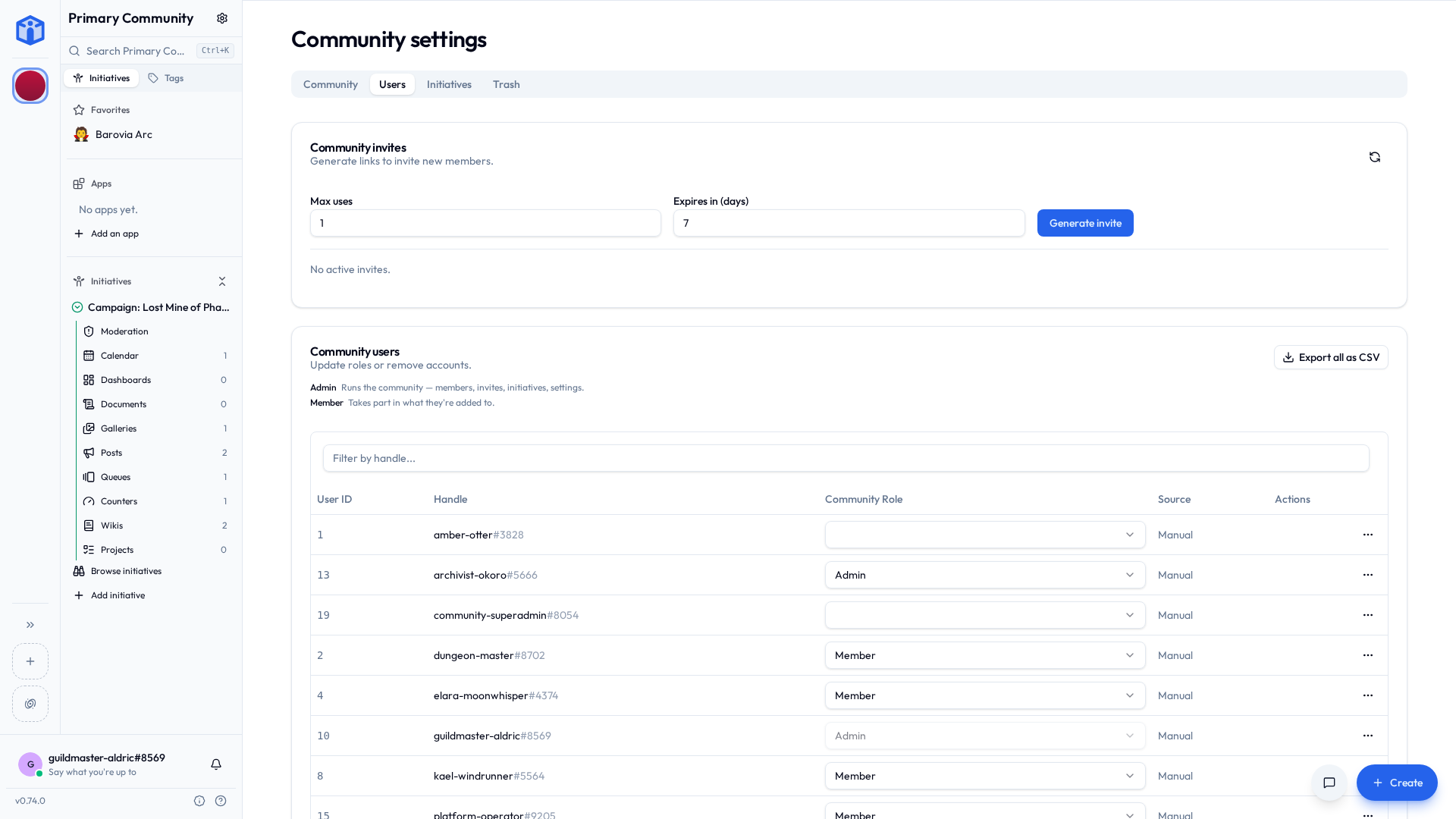
Member roles
| Role | What they can do |
|---|---|
| Member | Take part in the initiatives and projects they're added to. |
| Admin | All of that, plus run the community: members, invites, initiatives, settings. An admin can see and manage everything in their community. |
| Superadmin | All of that, plus how people get in — the community's own sign-in. Whoever made the community holds it. |
Promote and demote from Community settings → Users.
Promoting somebody to admin also lifts the initiative roles they already hold: in every initiative they're in, they move to Moderator, unless they're a Manager there already. The app then treats them as the authority they actually are — they're told when somebody asks to join, and waiting requests show up on their front page. Demoting somebody leaves their initiative roles exactly where they are.
Why superadmin is separate
Running a community and holding the keys to it turn out to be different jobs. Your most reliable organiser is the person you want as admin. They are not necessarily the person you want changing how everybody signs in.
So the top seat is its own rung, and it's narrow on purpose: the Security and Integrations tabs, and nothing else an admin couldn't already do. An ordinary admin doesn't see that tab at all. (It also holds the Usage tab, which on a hosted server carries the community's plan and the way to the billing portal — a self-hosted install has no such thing.)
Only a superadmin passes the seat on. An admin can't appoint one and can't demote one, which also means nobody can quietly take it from you.
A community always keeps one. The last superadmin can't be demoted or removed, and can't leave or close their account while anybody else is still there. Promote somebody first. The one exception is the obvious one: if you're the only person left, there's nobody to strand and nobody to promote, so you're free to go.
What the member list shows
The things a community actually manages: handle, name (the display name, where there is one), community role, whether the membership came from a group login sync, the member's standing, and when they joined. Export all as CSV gives you the same columns.
A member's platform role and whether they've confirmed their email address aren't a community's business, so they're in neither the list nor the CSV. Platform-wide user management lives in the operator dashboard.
Community admin is not the same as running the server
Being an admin of your community gives you total control of that community — and precisely no control over the server or anybody else's community. Server-wide roles are a separate thing entirely: see Platform roles.
Community settings (admins)
Open Community settings from the sidebar or the rail:
| Tab | What's in it |
|---|---|
| Usage | Storage and members against the community's limits, and anything an installed plug-in counts for you. On a hosted server the tab is Plan & usage and also shows the plan: a running trial, the next renewal and its amount, a scheduled cancellation, or a failed payment. Every change to the plan, cancelling included, is made in the billing portal the tab links to. Superadmin only, and where community settings opens for them. |
| Community | Name, description, location, icon and banner (square, up to 512 KB), and the directory listing. |
| Users | Members, roles, invite links. A superadmin also sees whose personal API keys reach the community, where the server grants it the security standard. |
| Initiatives | Create and manage the community's initiatives. |
| Security | Who gets in and on what terms: the community's own single sign-on, where its people land, how long a session lasts, and how much a notification says once it leaves the app. Superadmin only, and only where your server has granted it — most communities never see this tab. See Your community's sign-in and security. |
| Integrations | AI settings and installed plug-ins — see AI features and Plug-ins & the marketplace. |
| Trash | Recently deleted things, restorable. |
| Data | Export the whole community, restore a backup, bring work in from another tool, and re-download a finished export. Superadmin only. One whole-community export every couple of days — the tab says who took the last one and when the next can start. |
| Danger zone | The stuff you can't undo. |
Bringing work in from another tool
Coming from somewhere else? You do not have to retype four years of tasks by hand. The Import button on Community settings → Data opens one wizard for all of it:
- Where's it coming from — Todoist, TickTick, Vikunja, or an Initiative backup you exported yourself. The wizard tells you where in that app to find the export file.
- Drop the file in.
- Say where it lands — which list or project from the file, what to call it here, and which initiative it belongs to.
- Say who its people are, if it quotes anybody. Handles that match a member are filled in already; the rest you point at somebody, or leave blank and the words keep the name they arrived under.
A project arrives whole: dates, priorities, tags, assignees, checklists, comments, and when things were finished. Its own sections or lists become your statuses, so nothing has to be mapped onto columns by hand.
It arrives as a new project and touches nothing that's already here, which means a first attempt you hate costs you one delete.
Todoist leaves out what you finished
Its export carries outstanding work only, so completed tasks won't come across. That's Todoist's export rather than our import, and the wizard says so before you upload rather than after.
From Jira and Confluence
Jira and Confluence have no file to drop in. Pick Jira & Confluence in the same wizard and it reads your site directly instead — both products in one go, or just the one you want:
- Connect with your site's address, your Atlassian email and an API token. The token reads only what you pick, and it's deleted as soon as it's been read.
- Tick the projects and spaces, choose the initiative they all land in, and decide whether comments and attachments come along.
- Wait while it reads. A big project takes a few minutes. You can close the window and make a cup of tea — opening the import again picks up exactly where it was.
- Check what it found. Nothing is written yet. You get the count of everything coming across, the Jira fields that become properties (untick any you don't want), and — just as plainly — anything that won't make it.
- Say who its people are, then start it. Somebody who's in both products is asked about once.
No token to hand, or a Confluence this server can't reach — one on the office network, say? Export the space instead: in Confluence, Space settings → Export space → HTML. Pick Jira & Confluence here, choose Upload it under the connect form, and drop in the zip. It's read the same way and you get the same review; only the comments stay behind.
Each Jira project becomes a new project here: its columns, fields, links between issues, sub-tasks under their parents, and each sprint as an event on a calendar named after its board. Pictures sit where the issue showed them, and any other attached file lands in Files, attached to the task. Sprints need calendars, so an initiative without them gets everything except the sprints, and the review says so first.
Each Confluence space becomes a wiki with its page tree kept exactly as it was: the home page is the home page, children sit under their parents, and labels turn into tags. A folder — or a parent page that only ever existed to hold its children — becomes a page listing what's inside it, so nothing arrives as a mysterious blank. Links from one page to another point at the imported page. Panels become callouts, status lozenges statuses in their own colours, a decision log a checklist ticked where it was decided, and a Mermaid code block a drawn diagram. Pictures sit where the page showed them. Every other attached file lands in Files and sits in the wiki under the page it was attached to, and a page's link to one points at it — so the spreadsheet everyone was told to "just check the attachment" for is one click away. Comments come too, footer and inline, replies under what they answer; an inline comment quotes the words it was pinned to, since here the thread sits under the page. One marked resolved is a finished conversation, so it stays behind. Attachments need Files switched on in the initiative; without it the pictures come on their own, and the review counts the files left behind.
Bring a project and its space over together and they arrive joined up, whichever way they pointed:
- A page that mentions an issue — through Confluence's Jira macro or a plain link — points at the task it became, with a smart chip showing that task's status as it is today, not as it was the day the page was written.
- An issue that links to a page, in its description, a comment or its list of Confluence pages, points at the wiki page.
A page that mentions an issue from an earlier Jira import is joined up too. The review says how many links it's joining, and names anything with no equivalent here — a table of contents, a draw.io diagram, the macro somebody installed in 2017 and never mentioned again — before you commit to it.
Importing a single exported file into one tool is a different, smaller thing, and it stays on that tool's own page.
Trash and retention
Deleted things go to the community Trash first, where an admin can bring them back. You set how long they hang around — a number of days, or never auto-purge to keep them indefinitely.
This is the setting that quietly saves somebody's entire afternoon roughly twice a year. Be generous with it. Nobody has ever regretted a long retention window at the exact moment they needed one.
The danger zone
The hard-to-undo things, chiefly deleting the community.
It vanishes for everyone in it immediately — initiatives, projects, tasks, files, members, the lot — and you'll be made to confirm properly, retyping DELETE COMMUNITY <NAME> by hand. Only a superadmin can do it; the tab is theirs alone.
Everything in it is then held for a window — ninety days, unless whoever runs the server says otherwise — and at any point inside it a platform operator can restore the lot from Settings → Platform → Communities, exactly as it was, handing it to a new owner where nobody's left who could run it. So the 11pm decision is recoverable, as long as somebody notices in time.
You get an email naming the date that window closes. Members get one less thing in their list, which is the part they can act on, so they get no mail.
A restored community reconnects its installed plug-ins itself. It gave those plug-ins their access in the first place, so it gives it again.
The friction is entirely deliberate and we're not sorry about it.
For the technically minded — what community deletion does
When the window finally runs out, it removes the community's isolated database area and the database roles tied to it, then cleans up the shared records connecting people to it: memberships, invites, single-sign-on mappings, access grants. Until then all of that is intact, which is what makes a restore a restore rather than a rebuild. If you only want out of a community, leave it from the rail instead — that removes just you.
Your name in a community
Everyone is their handle, jordan#1234, until they say otherwise. To go by something friendlier in one community, open its Members page and choose Set your display name, at the top beside the member count. "Jordan from the allotment" in the allotment society, plain jordan#1234 at the residents' association, and neither one any the wiser.
It shows wherever that community shows people, and people can search for it. Clear the box and you're back to your handle.
Admins can set or clear a member's from the row menu under Community settings → Users. Handy when four people are called Sam.
Reporting something
Something here that shouldn't be? Comments, notices, pictures, profiles and directory listings all carry a small flag: Report. Say what's wrong, add a line if you like, and Send report. It isn't offered on your own things, because you can already edit or delete those.
| What you report | Who looks at it |
|---|---|
| Anything inside an initiative — a comment, a notice, a picture | That initiative's moderators, and the community's admins |
| A profile, or a community's directory listing | Whoever runs the server |
The people who look see what you wrote. The thing you reported isn't touched until one of them decides it should be.
Asking for help
The lifebuoy at the foot of the sidebar is Ask for help. Where your server takes help requests from this community, it opens a short form — what it's about, what happened — and it goes to the people who run the server, not to the community's own admins.
Where the server takes no requests from here but has said who to write to, the button gives you that address instead. Where there's neither, the button isn't there, and Documentation, the question mark beside it, is where to look.
Every request you send lands in My Tickets, in the sidebar: where each one stands (Received, In progress, Waiting on you, Closed), what the team said, and your replies. You get a notification when it moves, so there's no need to keep checking. A report is listed there too, though the team looks into reports without replying to them.
Whoever runs the server decides which communities take help requests. See Platform roles.
Leaving a community
On the community rail, open the community's menu and choose Leave community. That removes you and nobody else. Everyone carries on without you, which is either a relief or mildly wounding depending on the day you're having.
If you're the last superadmin, you'll be made to promote somebody first. Walking out and leaving a community nobody can configure is a favour to no one, least of all the person who eventually notices. Ordinary admins can come and go freely — there's always the seat above them.
Related
- Initiatives — organising work inside a community.
- Sharing & access — who can see what.
- Security & privacy — how communities stay separate.