Single sign-on (OIDC)
Single sign-on lets people into Initiative with an account they already have — the work one, a Google one, the passkey thing you run on a box under the stairs. Initiative speaks OpenID Connect, which nearly everything speaks, and you set it up in Settings → Platform → Authentication as the owner.
You can add as many providers as you want. Each becomes a button on the sign-in page, and whichever button somebody uses, they land in the same one account.
Set APP_URL before you start
Signing in works by sending the browser away and catching it on the way back, so Initiative has to know its own public address. Set APP_URL (see Configuration) first, or the callback URLs you copy out of here will point at somewhere that isn't you.
Adding a provider
Add provider walks you through it, because this is a conversation between two screens: a couple of values come from your provider, and one has to go back the other way.
1. Which one. Pick it from the grid. Ten of them are here by name; OpenID Connect at the end is for anything else that speaks it.
2. Where it lives. This is the field people get wrong, so it's the field the wizard is strictest about. Pick Keycloak and it asks for your address and your realm, separately, and builds the issuer out of them — nobody should be editing the middle of a URL to insert the word main. Then hit Verify.
Verify actually goes and asks. If something answers and agrees it's the issuer you named, you get a tick and a short list of what it found. If nothing answers, or the thing that answers is for a different issuer, you find out here rather than three days later when somebody tries to sign in. You can't move on until it's happy — which is the point.
3. Credentials. The Callback URL is at the top, with a copy button, because it's the one value that travels from here to there. Register it at your provider first; it will refuse the sign-in until that exact address is on its list. Then paste back the Client ID and Client secret it gives you. Leave the secret blank for a public, PKCE-only client.
4. How it behaves.
| Field | What to enter |
|---|---|
| Slug | Lowercase letters, numbers and dashes. It forms the sign-in URLs, so it's fixed once you save. |
| Display name | What the button says. "Work account" helps more than "OIDC". |
| Scopes | Filled in from what your provider said it offers. Add offline_access if you want group changes picked up between sign-ins. |
| Groups claim | Suggested from the claims your provider listed, and you can type one it didn't. Only needed if you're sorting people into communities — see below. |
| Create accounts on first sign-in | On, a stranger who signs in gets an account. Off, the button only works for people who already have one. |
| Enabled | Off takes the button away without losing anything you typed. |
Two more addresses sit at the top of the page — a post-login redirect and a mobile app callback — shared by every provider. Most providers never ask for them.
Afterwards. Each row has Test, which re-asks the same question of a provider you've already saved — useful when somebody has been reorganising things at the other end. Edit is a single form rather than four steps, with the same Verify button and the same callback to copy. The secret is write-only: leave it blank to keep the one you have, or tick Remove the stored secret.
Deleting is careful on your behalf. A provider that a community's sign-in requirement points at waits until you change that requirement. So does one that is somebody's only way in — those people need a password or a second provider first. Everyone else keeps their account and every other way they had of reaching it.
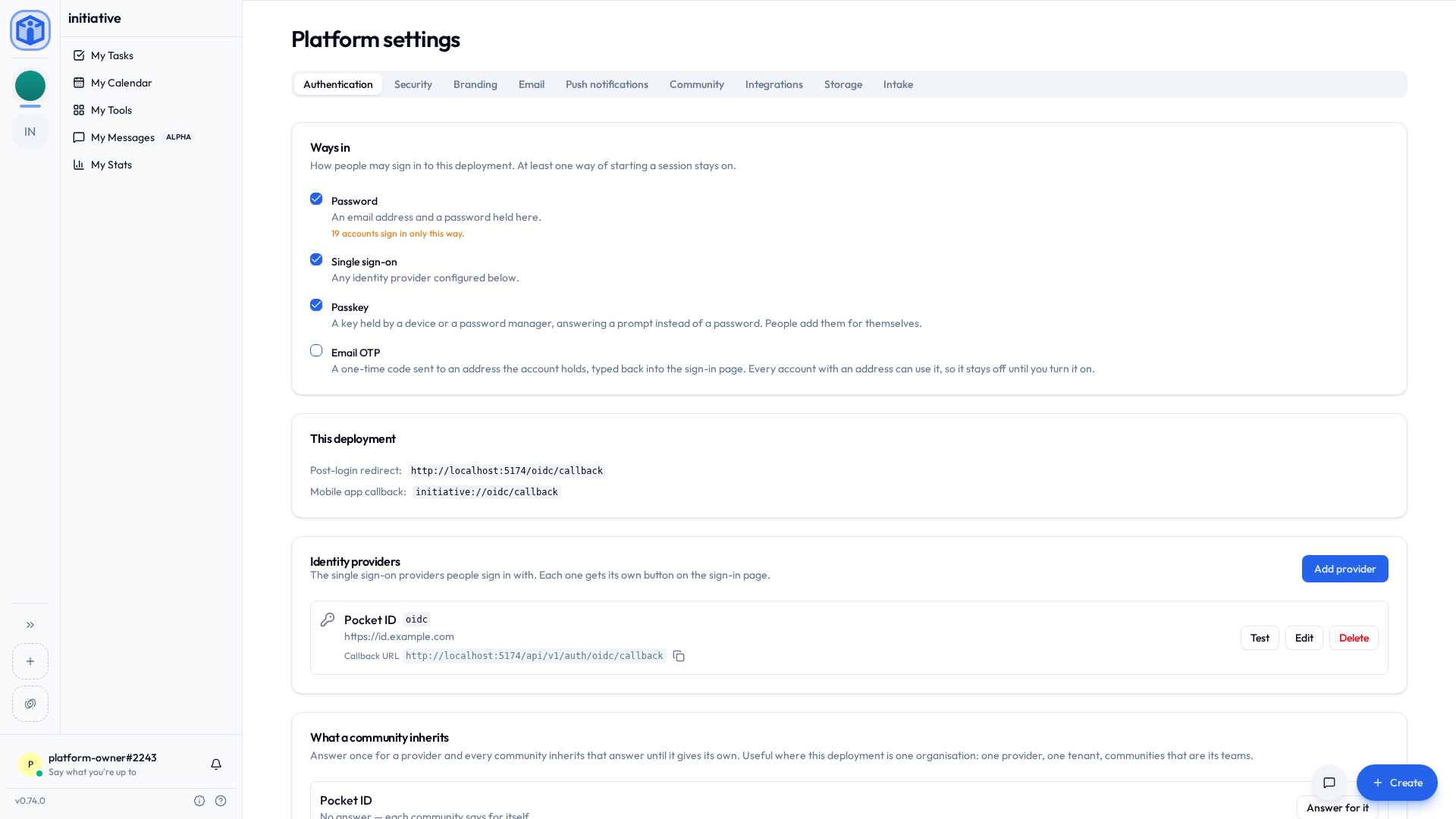
Ways in
At the top of the Authentication page is the list of ways people may sign in to this server. Tick the ones you want. At least one stays on, which the page enforces by refusing to let you untick the last.
| Way in | What it covers |
|---|---|
| Password | An email address and a password held here — the sign-in form, registration, and password reset, together. |
| Single sign-on | Every provider on this page, and every provider a community has of its own. |
| Passkey | Signing in with a key held by a device or a password manager, and making an account with one. |
| Authenticator app | The six-digit code from an app, asked for after something else. It can't start a sign-in on its own, so it never counts as the last one standing. |
| Email OTP | A code sent to the address somebody types. See below. |
Untick something people are using and Initiative tells you how many accounts sign in only that way, and asks you to confirm that number before it goes through. Nobody is signed out either way — an open session runs to its normal end, on the web and on a phone, and app credentials carry on working. This is about opening a new session, not ending existing ones.
Turning off single sign-on waits if any community still requires one. Lift the requirement there first; the page names how many are in the way.
Codes by email
Email OTP signs somebody in with a six-digit code sent to their address. No password, no app, no key.
It is the one way in that arrives switched off, and stays off until you tick it. The others wait for somebody to do something first — register a key, be linked to a provider — so switching them on changes nothing until people act. This one is live for every account with an email address the moment it is permitted, which makes it your decision rather than something an upgrade hands you.
It needs email configured. Tick it without that and the page refuses and says so.
The same box also takes people who don't have an account. An address nobody holds gets a code, then a prompt for a username, and that's a new account with its address already confirmed — no verification letter, because the code was one. Your registration settings still apply: invite-only stays invite-only, and a server that isn't taking sign-ups sends nothing.
Accounts that never confirmed their address
Some accounts are sitting on an address nobody ever proved — signed up before you had email working, usually. When somebody proves that address with a code, the password that account was carrying is retired and they set a new one from their settings. The account keeps its name, its memberships and everything in it.
Letting a community use a provider
The providers are yours. A community connects to one.
You say this deployment can sign people in with Google. A community says our members come in through that — and only our Workspace. That second half is the point: Google will vouch for anybody with a Google account, so a community connecting to it names the domain that's theirs.
A community never sees an issuer, a client ID or a secret, and never types an address. There's nothing left for them to get wrong on behalf of every one of their members.
A community bringing its own identity provider is the same shape with you doing the registering: add their Okta on this page when you onboard them, and connect it to them.
Two switches in Settings → Platform → Guilds → Manage → What it decides for itself are yours to grant, per community. Neither needs the other, and most communities get neither.
| Switch | What it lets their admins do |
|---|---|
| Its own sign-in | Connect to the providers you've registered, say which accounts on one count as theirs and where those people land — as a member or an admin, and in an initiative if they like — and insist members arrive that way. Also gives them the member sign-in link that drops people straight into the community. |
| Its own security standard | Refuse personal API keys, and hold members to a twelve-hour session. For a community answering to an auditor. |
A community that wants single sign-on doesn't get the compliance knobs thrown in, and one that wants the knobs doesn't have to take a sign-in it never asked for.
On their side it's one tab, Settings → Security, and with nothing connected yet it leads with Set up sign-in — four questions in the order they depend on each other: which way in, whose accounts count, where those people land, and only then whether to insist on it. A provider you've answered for at the deployment level shows up already answered.
Withdrawing a switch closes the part of their Security tab it governs and nothing else. Their connections stay, their members keep signing in, and a requirement they already set stays in force — you're taking away the ability to change the setup, not the setup. Their admins can always lift a requirement, whatever you've granted, so a community is never stuck behind a sign-in nobody can undo.
Agreeing a community's claim. A community names its own domain or tenant, and Initiative can't tell whether acme.com really is theirs. So before people join it on arrival, somebody outside it agrees. Those claims wait at the top of Operator dashboard → Sign-in placement, every community's in one list, with Agree beside each. Until then the connection works for the people already in the community; it just doesn't add anybody.
Everybody still has exactly one account however they signed in.
Provider quickstarts
Any standards-compliant OIDC provider works, and the wizard already knows each of these spells its issuer differently — it asks for the parts and assembles the address. What's left is the bit you do at the other end.
Passkey-only and light on its feet, which makes it a common pairing.
- OIDC Clients → Add client, name it "Initiative".
- Set its Callback URL to the one the wizard is showing you.
- Copy the generated Client ID and Client secret back in.
The wizard asks for your Pocket ID Address. Nobody has a password in Pocket ID, so your Initiative sign-ins inherit passkeys without you doing anything. For group sorting, turn groups on there and pick groups as the Groups claim.
- Create a Provider → OAuth2/OpenID, set its Redirect URI to the callback URL the wizard is showing you, and note the Client ID and Client secret.
- Create an Application and bind the provider to it.
The wizard asks for your Address and the Application slug — the application's, not the provider's, which is the one people mix up. For group sorting, add the groups scope there and pick groups as the Groups claim.
Configured in YAML rather than a screen.
- Under
identity_providers.oidc.clients, add a client with aclient_id, a hashedclient_secret,redirect_urisset to the callback URL the wizard is showing you, andscopes: [openid, profile, email, groups]. - Restart Authelia.
The wizard asks for your Authelia Address. The secret you paste back is the plaintext one, not the hash you put in the YAML.
- In your realm, create an OpenID Connect Client with Client authentication on and a Valid redirect URI of the callback URL the wizard is showing you.
- The Client secret is on the client's Credentials tab; the Client ID is the client name.
The wizard asks for your Address and your Realm and builds the issuer from both. For group sorting, add a groups or roles mapper and pick groups or realm_access.roles as the Groups claim.
- Setup → App Manager → New Connected App, tick Enable OAuth Settings.
- Callback URL is the one the wizard is showing you; add the
openid,emailandprofilescopes. - Copy the Consumer Key and Consumer Secret back in.
The wizard asks for your Address, and which one matters: a sandbox is test.salesforce.com, and an org with My Domain signs in at its own. Use the address your people actually use, not the generic one.
- SSO Applications → Add New Application → Custom OIDC App.
- Redirect URI is the callback URL the wizard is showing you.
- Copy the Client ID and Client Secret back in, and attach the user groups who should get in.
Nothing to fill in on the address — JumpCloud is the same for everybody.
Same shape: register an app, add the callback URL the wizard is showing you, copy the credentials back.
All four are presets, so the address is one field or none:
- Google asks for nothing — its issuer never varies.
- Microsoft Entra ID asks for your Tenant ID.
- Okta asks for your Okta domain, like
dev-12345.okta.com. - Auth0 asks for your Auth0 domain, like
your-tenant.eu.auth0.com.
- Create a project, then an Application of type Web using Code with PKCE.
- Set its redirect URI to the callback URL the wizard is showing you.
- Copy the Client ID and Client secret back in.
The wizard asks for your Address — your own domain, or your-instance.zitadel.cloud.
Sorting people into communities
If your provider already knows who's in which group, Initiative can read that and put people where they belong the moment they sign in. No invite, no waiting for somebody to notice the email.
First tell Initiative where the provider keeps its groups: set its Groups claim — groups for most, realm_access.roles for Keycloak. Then the rules can come from either end:
| Who writes them | Where | Suits |
|---|---|---|
| Operators and owners | Operator dashboard → Sign-in placement | One identity team deciding where everybody goes, across every team at once. |
| A community | Its own Settings → Security → Where your people land | A community running its own sign-in that knows its own groups. See Where your people land. |
Both sets apply together. Somebody matched by a rule from each lands with the higher of the two standings.
Rules on a provider
Each rule says: people in this group land in this community, as a member or an admin — and, if you like, in one of its initiatives with a role. Pick the community and its initiatives turn up in the list.
A rule places people only in a community that has agreed to it, and there are two ways to agree:
- The community agrees, by switching on Let the deployment place people from this provider on its connection. Right for a server shared by separate organisations.
- An owner agrees for everybody, with Apply placement rules to every community at the top of the page. Right for a server that is one organisation, where asking two hundred teams to each tick a box is a fortnight of chasing emails. Every change to that switch is written to the audit stream.
A rule for a community that hasn't agreed is kept, marked Not applying, and starts working the moment it does. Communities always see the rules that place people in them, listed on their Security tab as set by the deployment.
One provider, several directories
A bridge — Keycloak or Authentik standing in front of other identity providers — signs in people from several directories through one provider. It is also how a directory that only speaks SAML reaches Initiative. Two of those directories can each have a group called staff, meaning entirely different people.
So a rule can name a directory as well: a claim the bridge adds to its tokens, and the value for one source — idp = acme-adfs, say. The rule then matches only people from there. Name a directory and leave the group empty, and it places everybody arriving from that directory.
How the mapping is evaluated
On each sign-in Initiative reads the provider's claim path from the ID token, falling back to the userinfo response, and applies that provider's rules. A community's own rule applies where its connection — or your default for the provider, where it has none — admits the person's claims. A rule on the provider applies where the community accepts provider rules or they apply everywhere, and, if it names a directory, where the claim it names carries that value. The authorization flow uses PKCE. Reconciliation is idempotent and scoped to the signing-in provider on both halves: it grants what that provider's rules match, and releases only the memberships that same provider's earlier syncs created. Where a provider supplies a refresh token (offline_access), a background sweep re-reads group claims for every provider that asserts one about every quarter of an hour, so changes land without waiting for the person to sign in again.
Related
- Configuration —
APP_URLand the rest. - Platform roles — who can configure this.
- Signing in — what people see.